Getting started with Smind Sections
Welcome to “Smind Sections” – the perfect app to help you easily and quickly build your Shopify store without any design and coding skills! Smind Sections adds 1,200+ ready-made sections and templates to any Online Store 2.0 theme — without touching your theme code. This guide takes you from installation to your first published section in about five minutes.
- Sections : Our app offers a diverse and extensive library of sections, ranging from Product detail, Collection page, Featured products, Testimonials, Features, and more. Simply select and drag-and-drop sections into your page to build your desired layout.
- Templates: We offer a variety of pre-designed templates such as homepage, landing page, collection page, product page, and more, allowing you to install them with a few clicks without worrying about the design.
- Packages: We offer a variety of pre-designed themes that allow you to easily install and start using them immediately.
- Product Block: will improve the shopping experience by adding credibility (social proof, star rating, live visitor count), engagement (video slider, features list), and urgency (countdown timer..,etc)
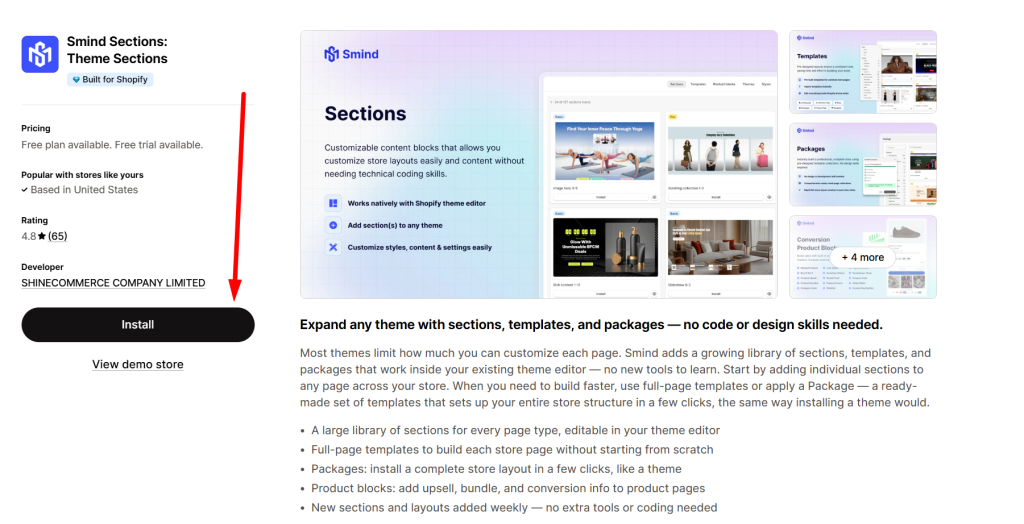
1. Install the app
- Go to the Shopify App Store and search for Smind Sections
- Click Install.
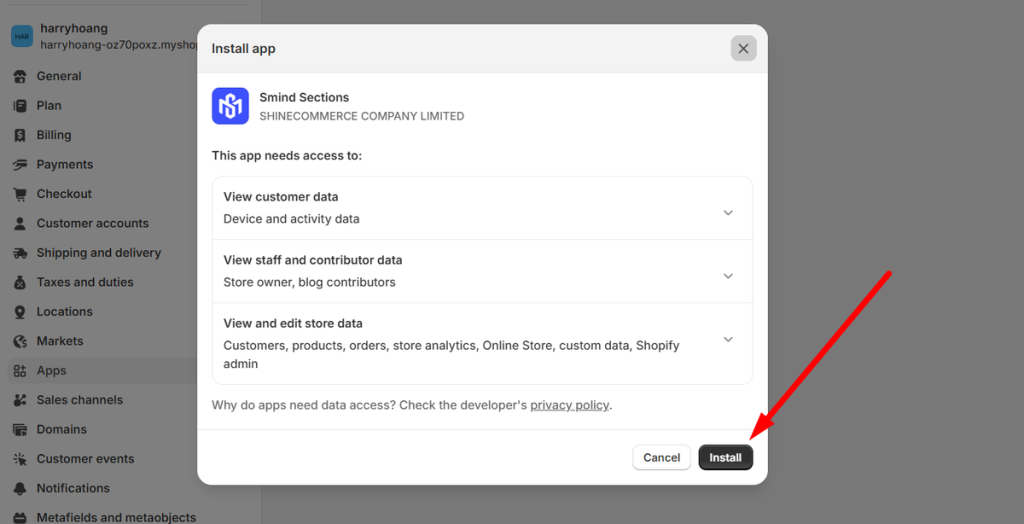
- Shopify shows the permissions the app needs — review them and click Install app.
- The app opens in your Shopify Admin under Apps > Smind Sections
2. Activate app embed
The app embed is required and lets Smind add sections, template and styles to your storefont
- In the app dashboard, look for the top setup banner Activate app embed

- Click “Enable on theme” button. If you have already completed this step and the status shows Enabled, you can skip it.
- The Shopify Theme Editor will open. Make sure [SMI] Theme Helper is toggled ON.
- Click Save to apply the changes

Manual method
- Click Save.
- Go to Online Store > Themes > Edit Theme
- Click App embeds (the puzzle piece icon in the top-left sidebar).
- Find [SMI] Theme Helper of Smind Sections and toggle it on.
Did this answer your question?
If anything is unclear, tell us — we improve docs weekly.