How To Setup Product Block Coupon Code
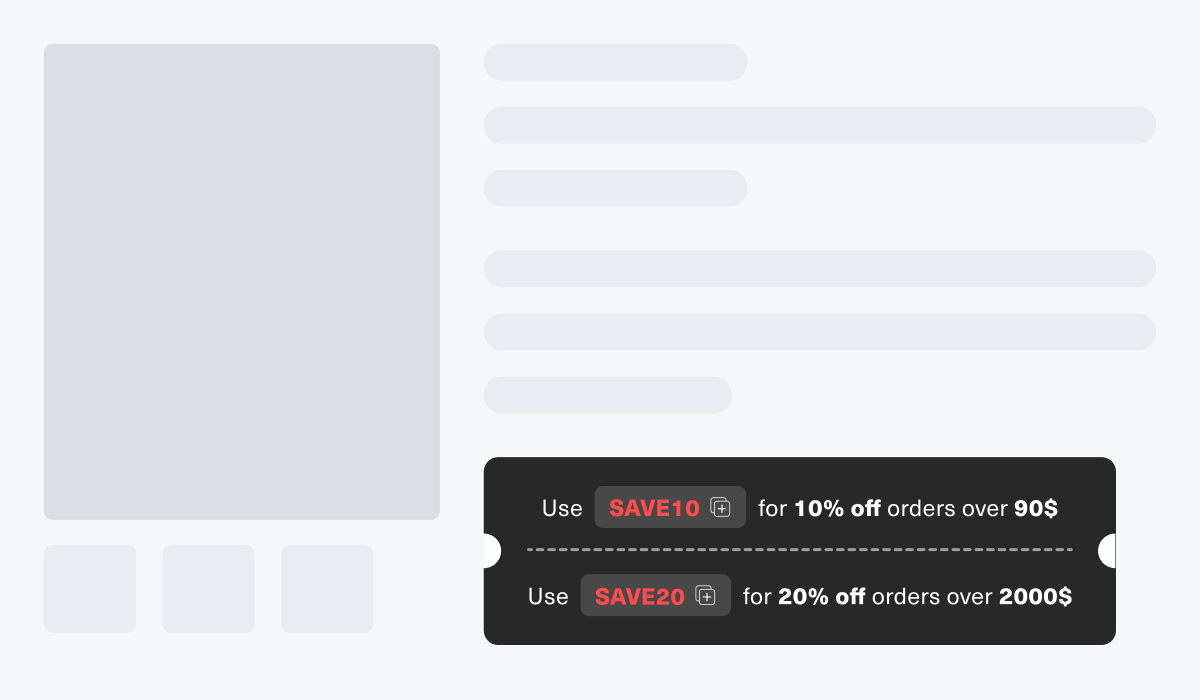
This block allow you drop into your product page to highlight a promotional code and its deal. Each code is presented in a styled “pill” that shoppers can click to copy, plus a short message explaining the discount threshold.
Key Features
- Rich-Text Descriptions: Edit the label text with bold, italics, links or emojis to match your brand voice.
- Customizable Code “Pill” Styling: Control background color, text color, padding, border radius and font size of the code badge
- Copy-to-Clipboard Button: A one-click/tap “copy” icon next to each code eliminates typos and friction at checkout.
Benefits
- Instant Visibility of Savings: The customers see exactly what code to use and how much they’ll save, in short, that no hunting around for promotions.
- Boosts Conversion & Urgency: When combined with a live timer or limited-time banner, coupon codes create FOMO, encouraging shoppers to act fast.
How To Use?
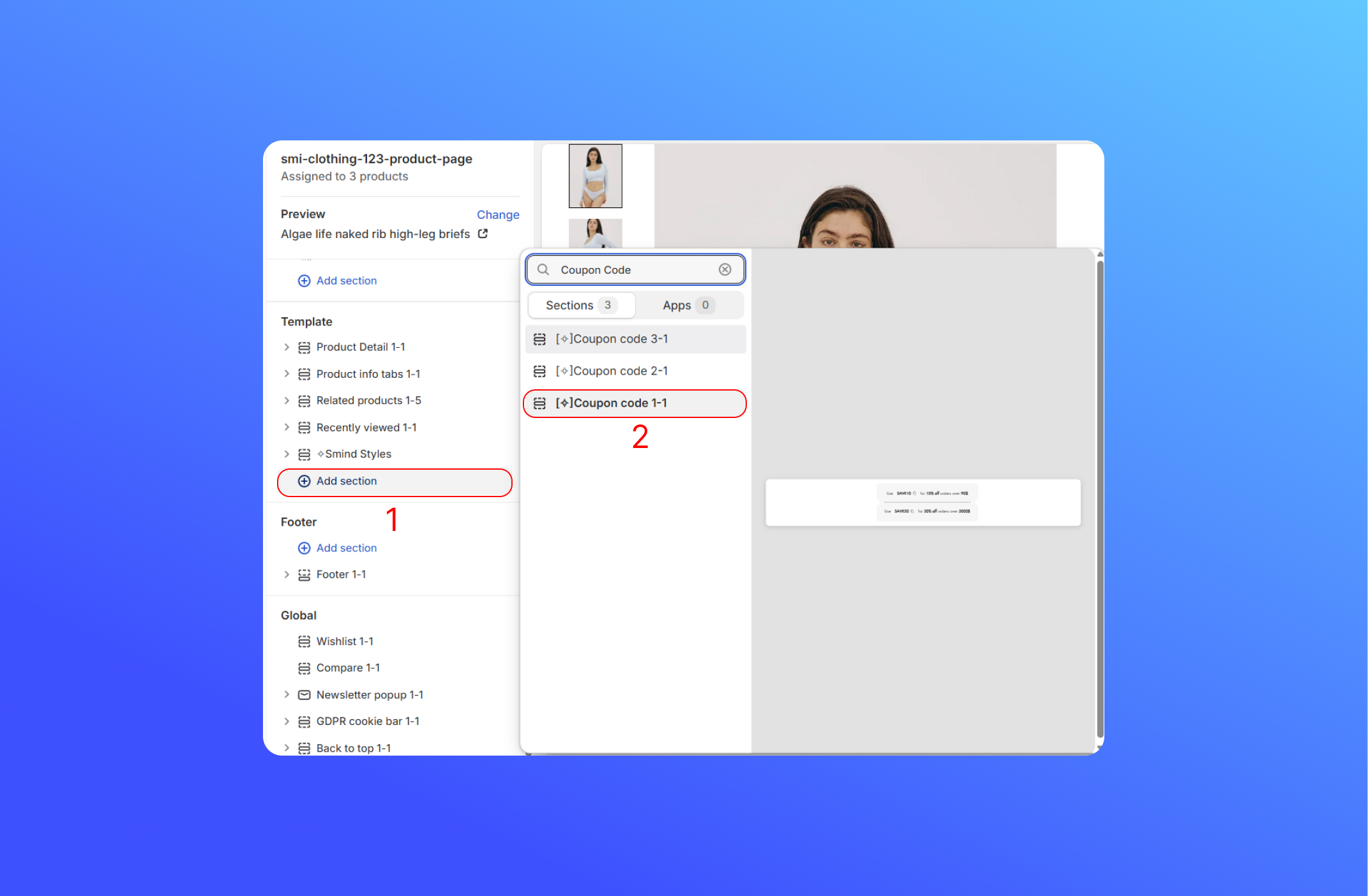
- After installing the Coupon Code blocks. Going to the Shopify Editor sidebar, select the product page temple, click Add Section in the Template tab.
- Choose the Coupon Code block
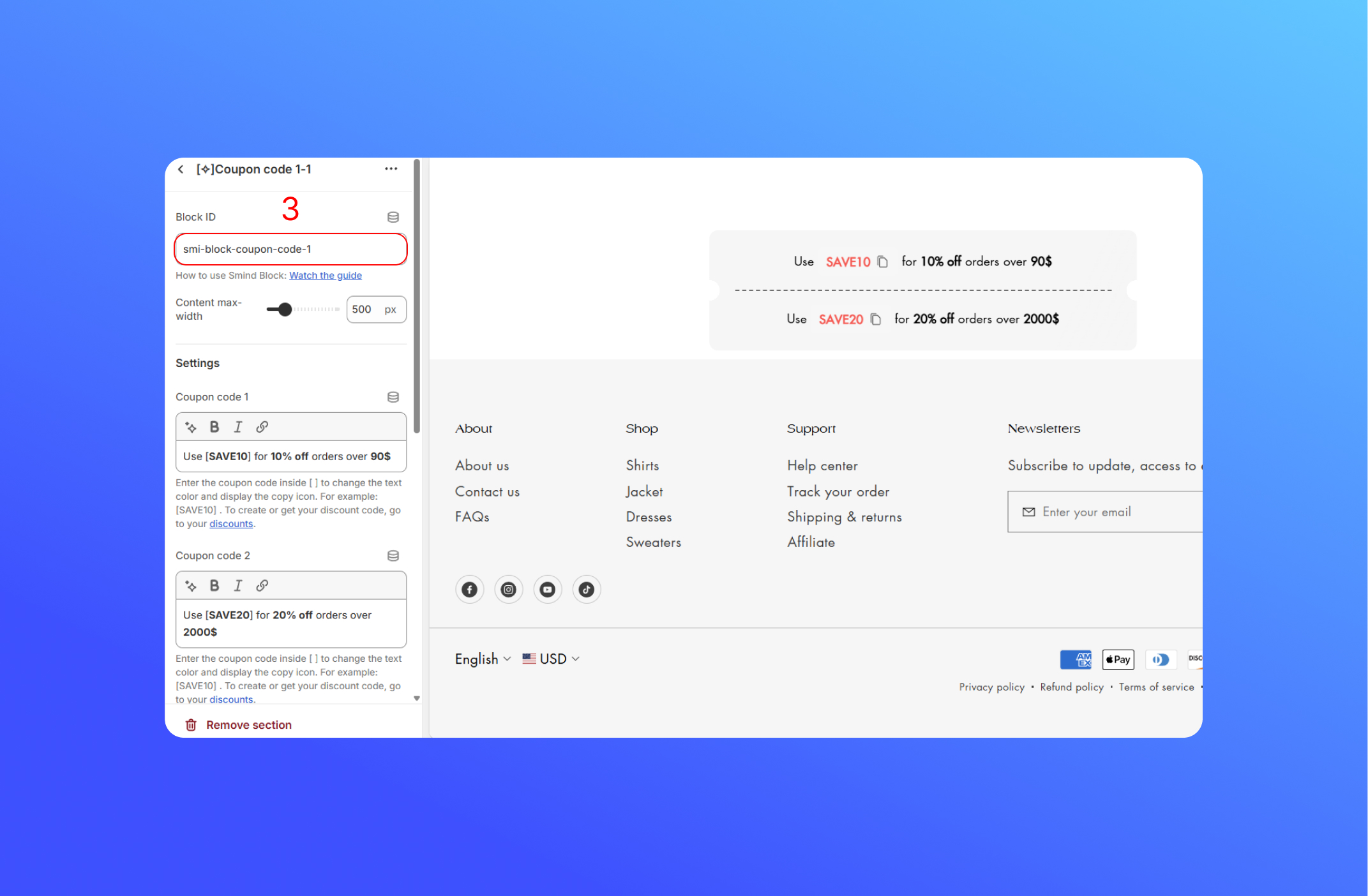
- Copy the block ID. For example: smi-block-coupon-code-1
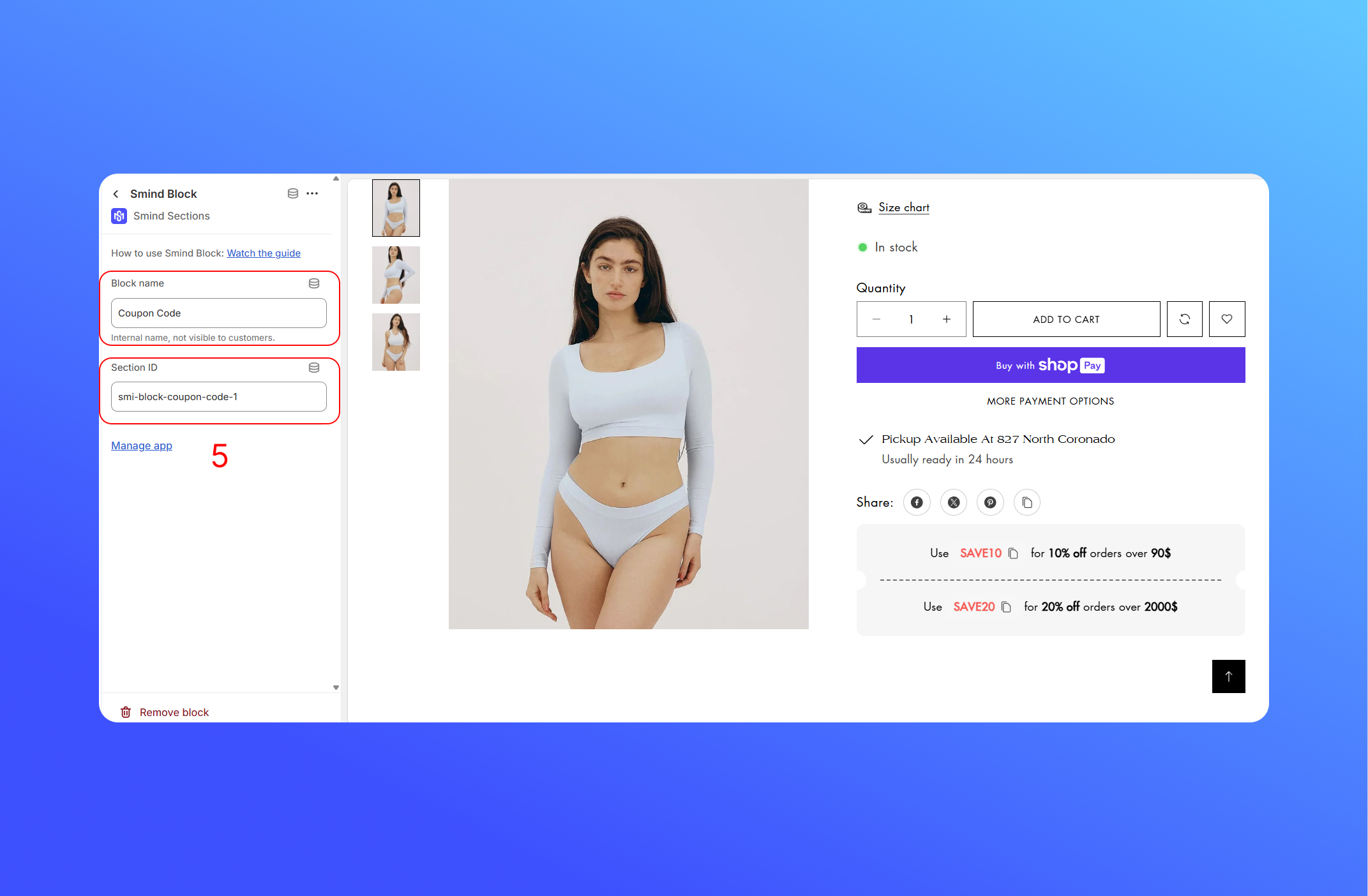
- On the Product Detail sections, click Add Block and add Smind Block to the section
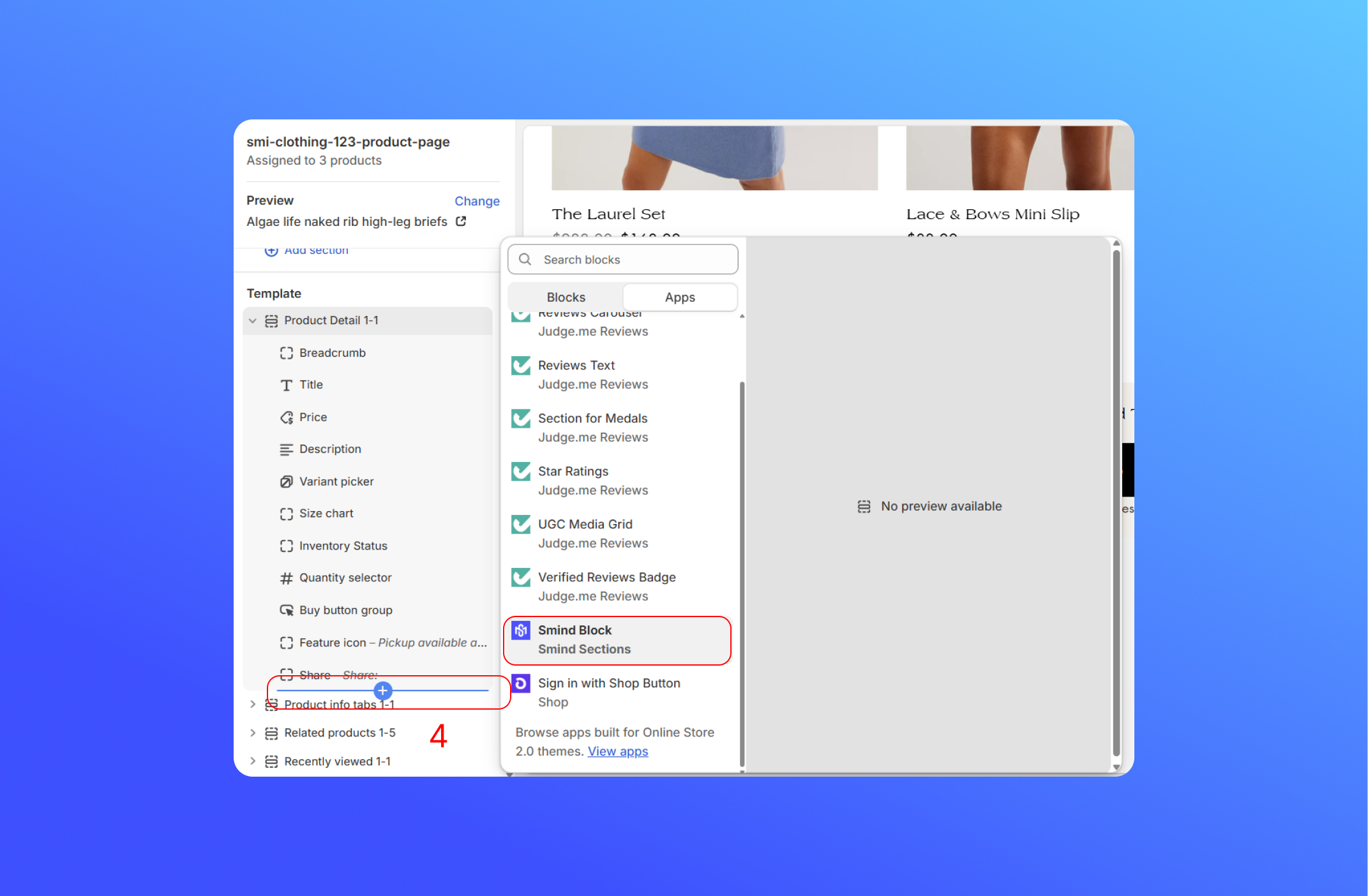
- On the Smind Block, insert the block ID of coupon code which is smi-block-coupon-code-1 to the Section ID and change the block name if you want.
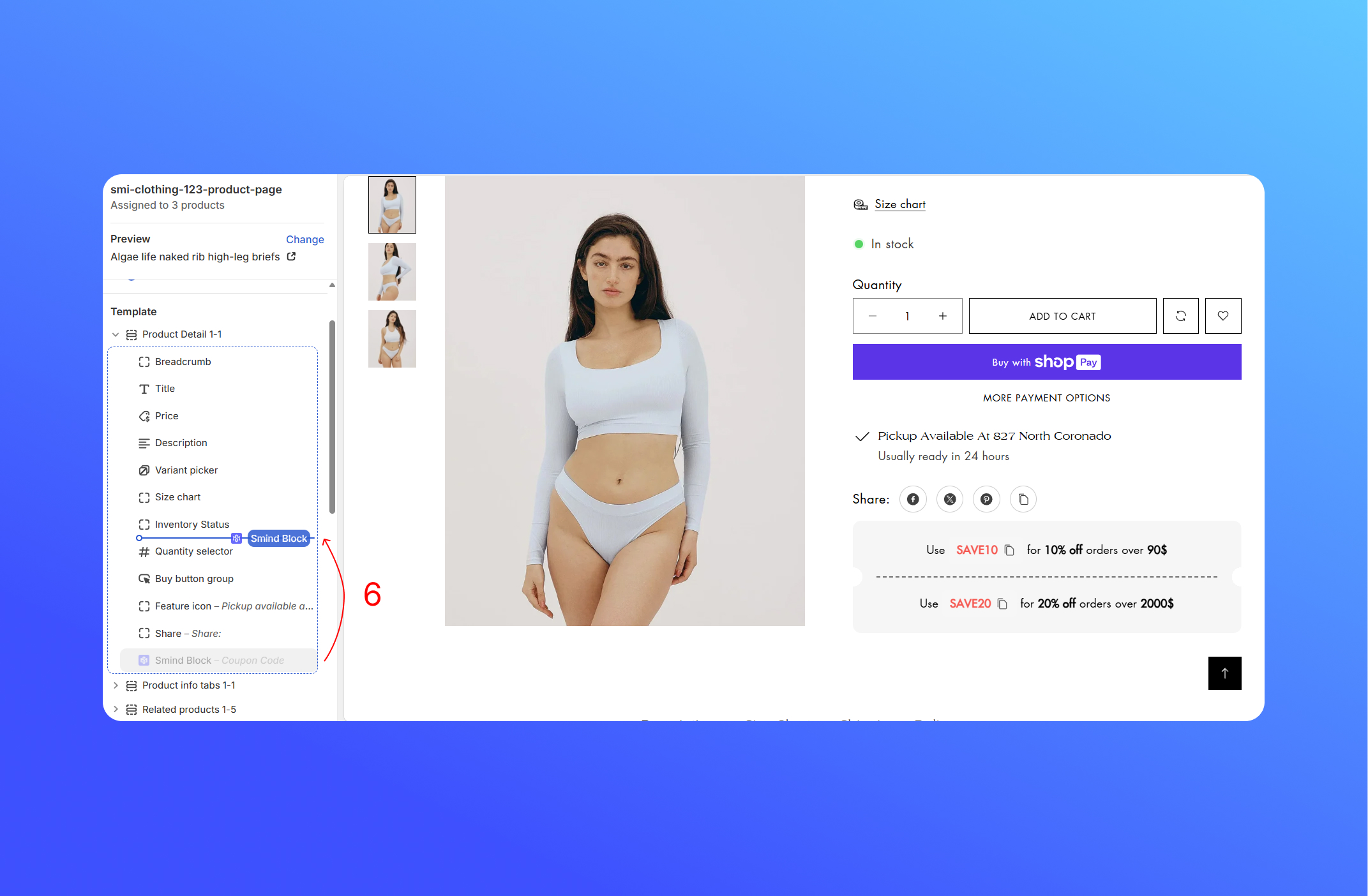
- Next, you can rearrange the relevant blocks within the product detail sections
- Finally, let’s start to customize the Coupon Code block
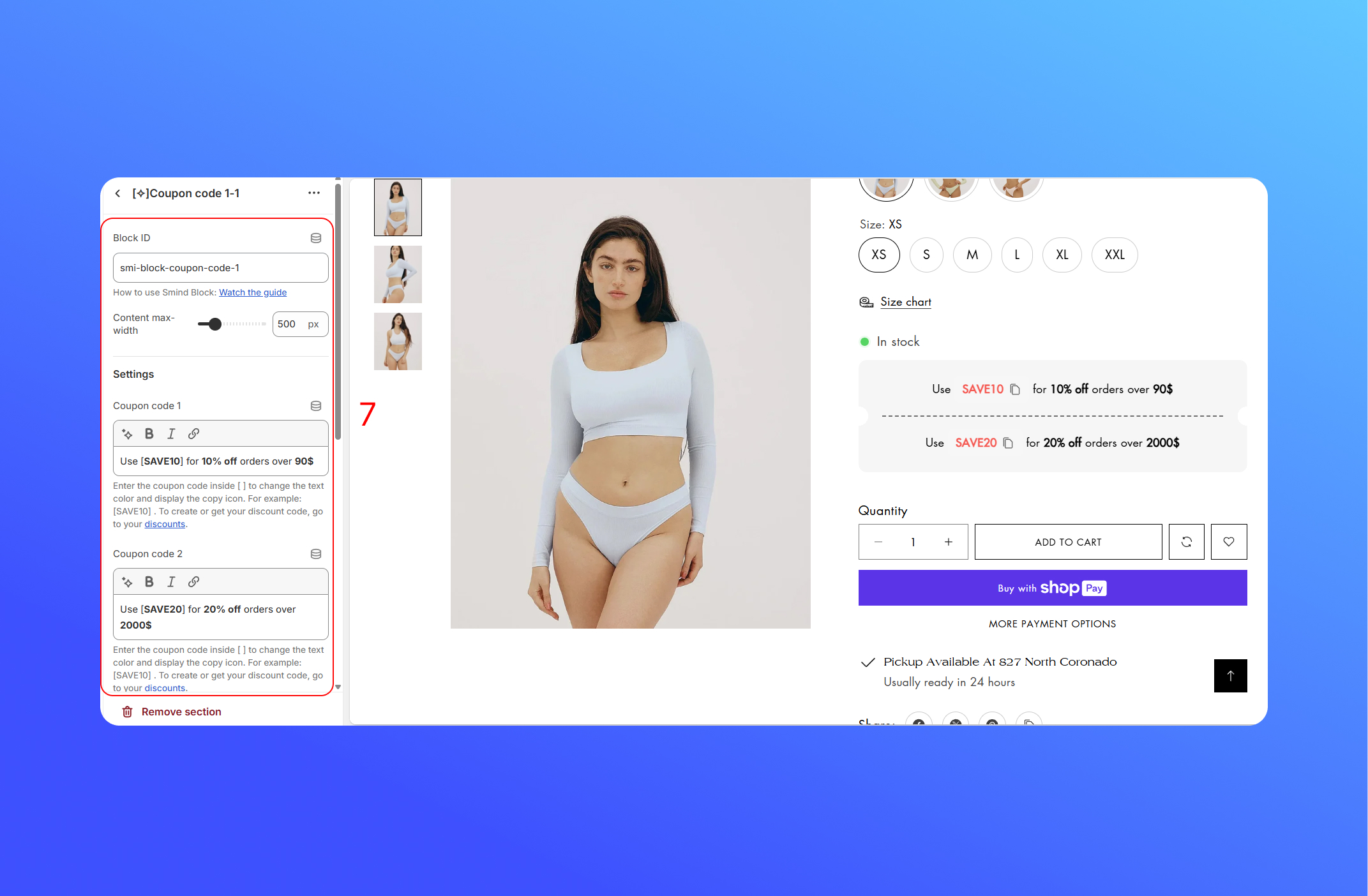
- Block ID: The unique ID of coupon code block
- Content Max Width: Set the maximum width of the timer’s content area can stretch to.
- Coupon code 1 / Coupon code 2: Put the actual code in square brackets [ ]. To create a discount code, you can learn more about it from the link
- Card style (1 | 2): Two preset layouts for how each code and its description appear
- Text size: Controls the font-size of the entire coupon message (both code pill and description).
- Content alignment: Aligns each voucher entry within its container.
- Animation: When enabled, applies a subtle entrance animation
- Color Scheme: Picks one of your color scheme to instantly change the style backgrounds and text.
- Coupon code: Change the code-pill’s background color—use this to draw extra attention.
- Top margin: Space above the entire coupon block.
- Bottom margin: Space below the coupon block.
- Icon style: Select from several preset copy-icon designs
Did this answer your question?
If anything is unclear, tell us — we improve docs weekly.