How to setup Countdown Timer in Cart Drawer
Display a countdown timer to create urgency and encourage faster checkout. In short, it shows customers exactly how much time remains on a promotion, a flash-sale, or a limited-stock offer.
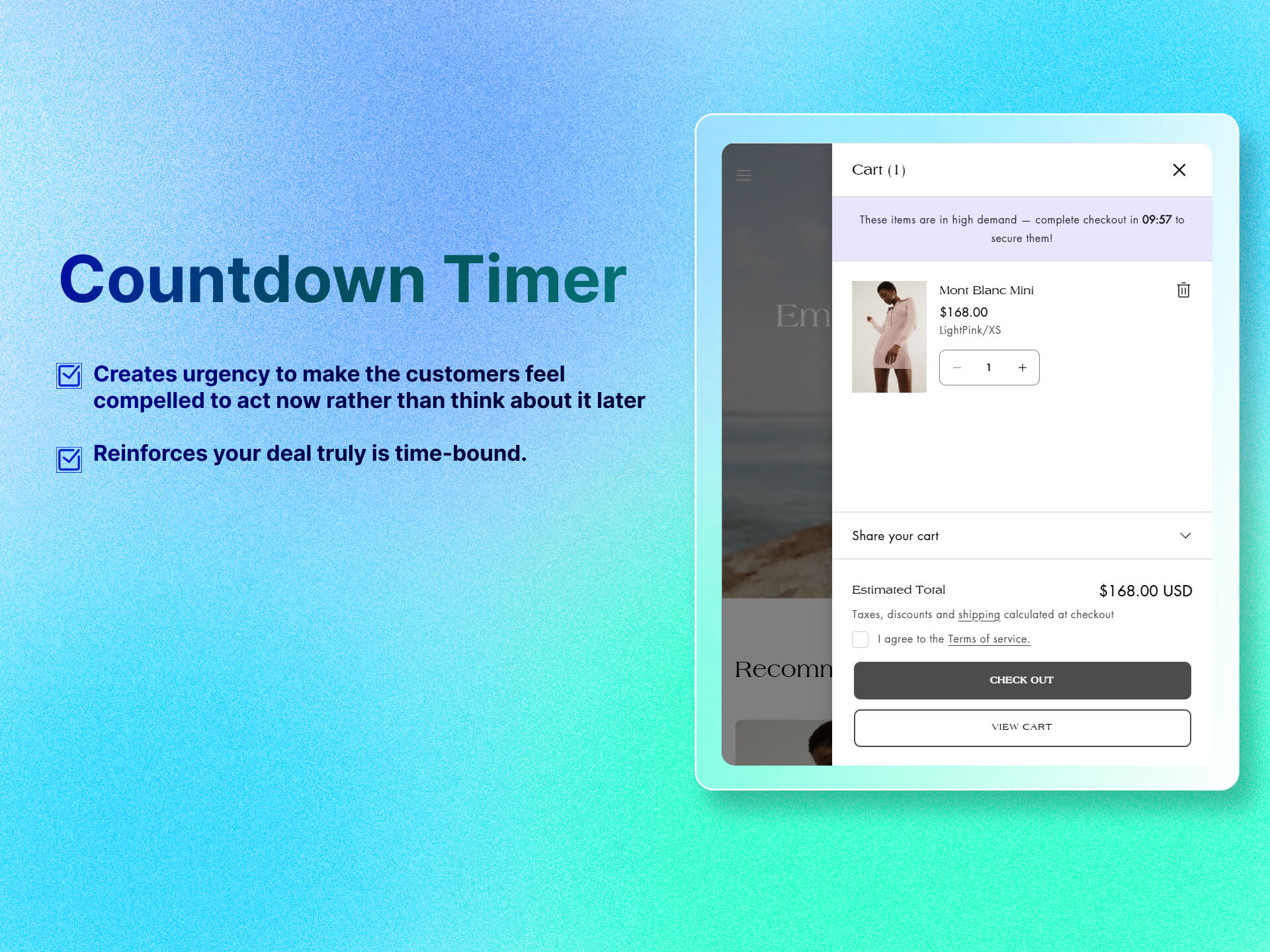
Key Features
- Configurable End Time: Set a fixed date/time or tie it to when the customer added their first item.
- Display after countdown ends: Action to hide or unhide the countdown timer when it reaches the end.
Benefits
- Creates Urgency: The customers feel compelled to act now rather than “think about it later,” driving faster checkouts.
- Highlights Limited-Time Offers: Reinforces that your deal truly is time-bound—building trust that you’re not hiding small print.
How To Use?
- Click Add Block
- Choose Countdown Timer
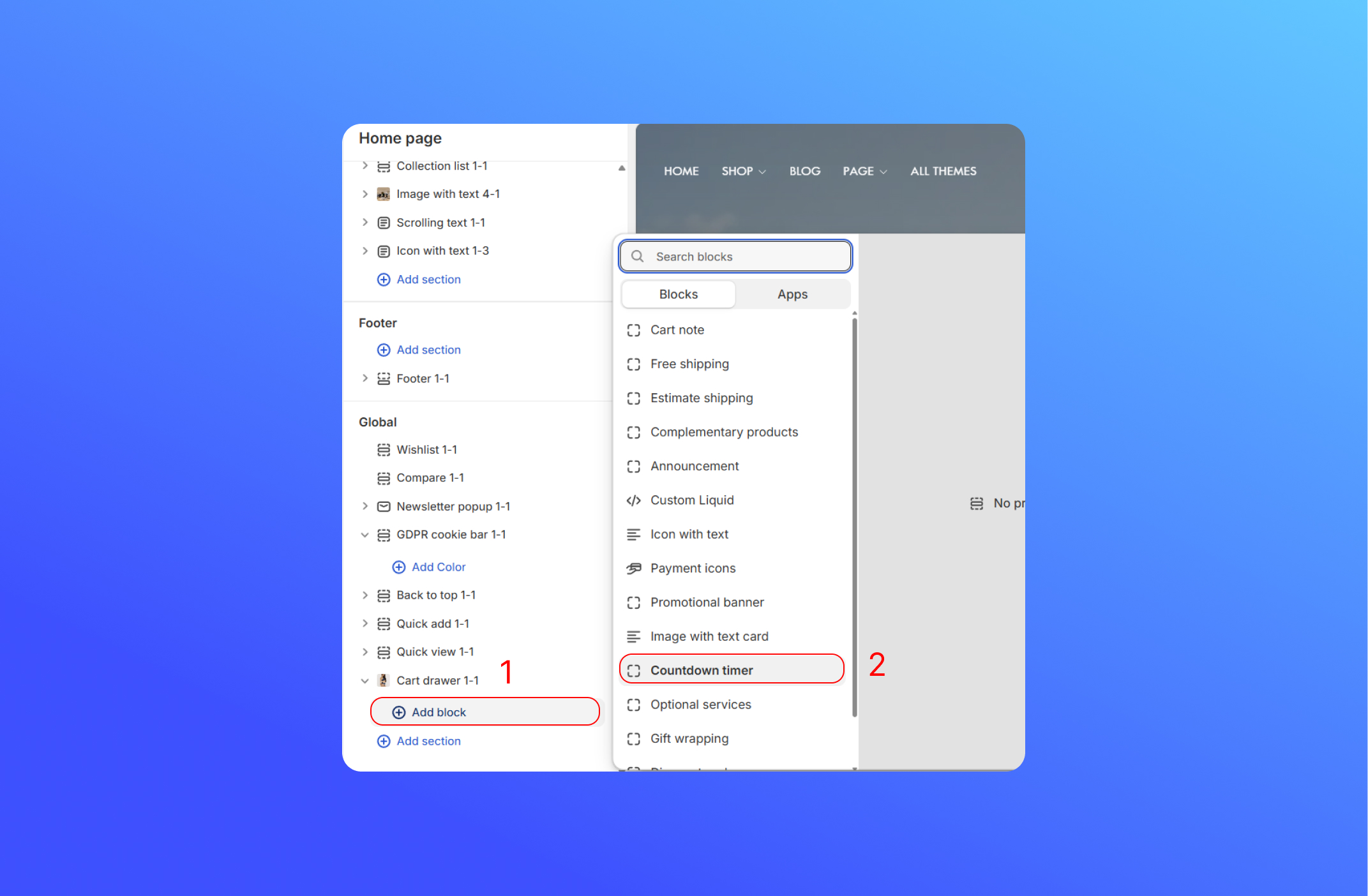
- Customize the Countdown Timer block

- Countdown message: where you insert or paste your message. Use the
[timer]placeholder wherever you want the ticking clock to appear. - Countdown expired message: The text to be replaced when your live timer text reaches to the end.
- Content alignment: where you choose left, center or right alignment for your text inside the bar.
- Timer duration: set how long the clock runs after someone opens the drawer.
- Action after countdown ends: Choose whether, on reload, to keep showing the expired message, hide the entire block, or restart the timer.
- Colors: Change the color of background and text
Did this answer your question?
If anything is unclear, tell us — we improve docs weekly.