How to use Color Block and Color Scheme
Learn about color block, color scheme, and how to use them.
- The color block is used in sections to customize the color for only that section.
- The color scheme is a set of colors. It is created to consistently apply colors throughout different sections of the Smind, allowing for quick customization of your storefront’s color.
Overview
Below are all the colors in a color scheme that will be used for all sections of Smind.
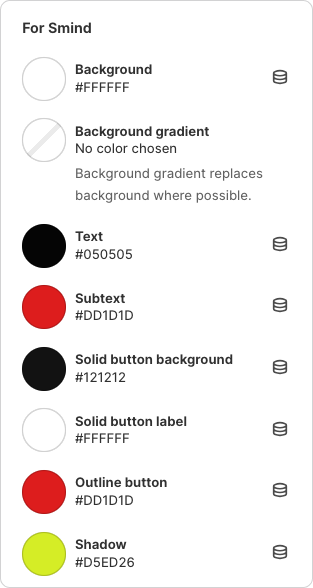
| Color name | Scope of influence |
| Background | Color is applied to the background of the sections. |
| Background gradient | A gradient of colors is applied to the background of some sections. Background gradients replace the background where possible. |
| Text | Color is applied to the block text and border. |
| Subtext | Color is applied to the subheading of sections. |
| Solid button background | Color is applied to the primary button background. |
| Solid button label | Color is applied to the primary button text. |
| Outline button | Color is applied to the secondary button text and border. |
| Shadow | Color is applied to the shadows. |
For example:
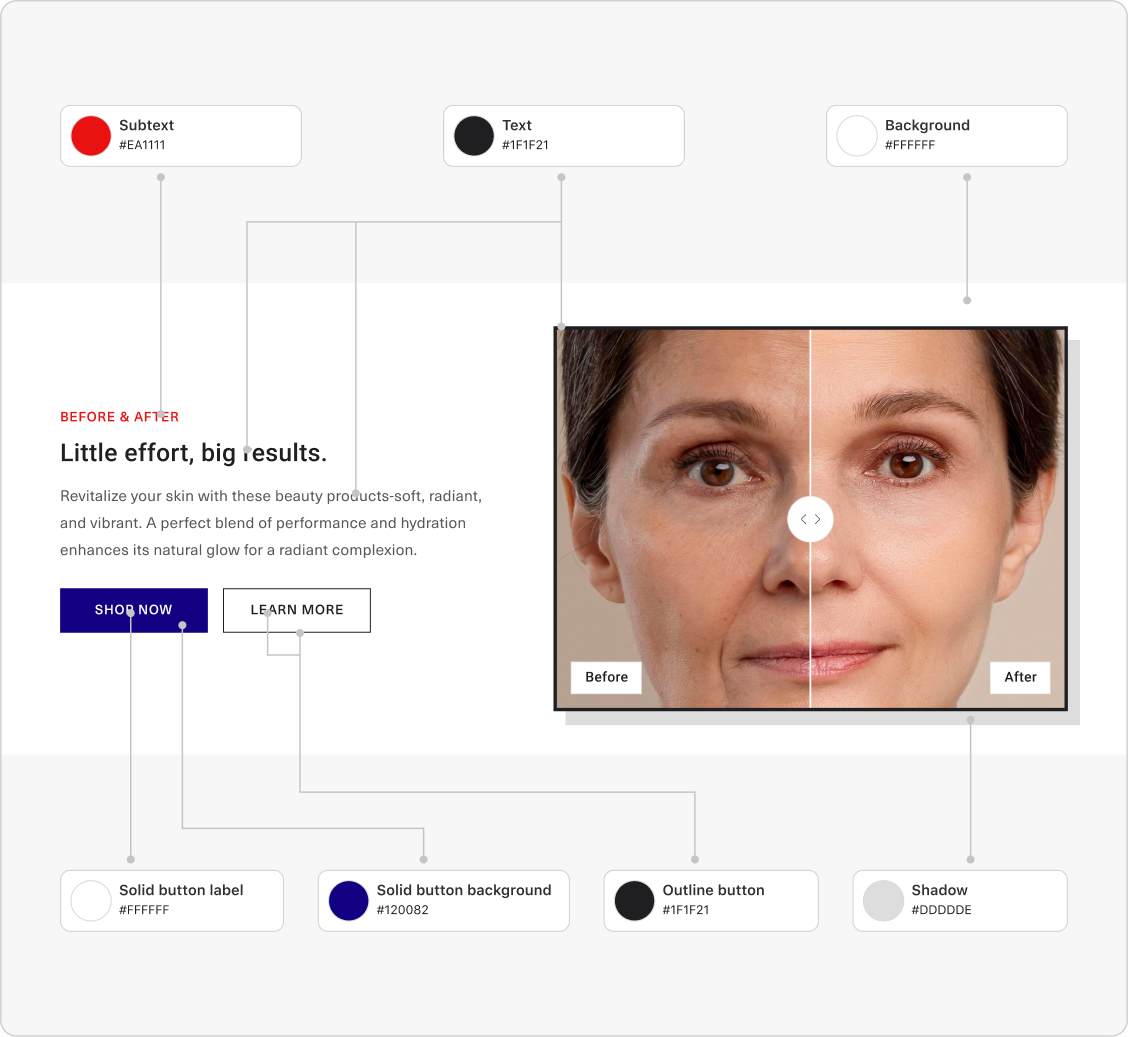
Color Block For Smind Section
To add Color block to the section (skip this step if “Color block” is already in the section), click Add Block
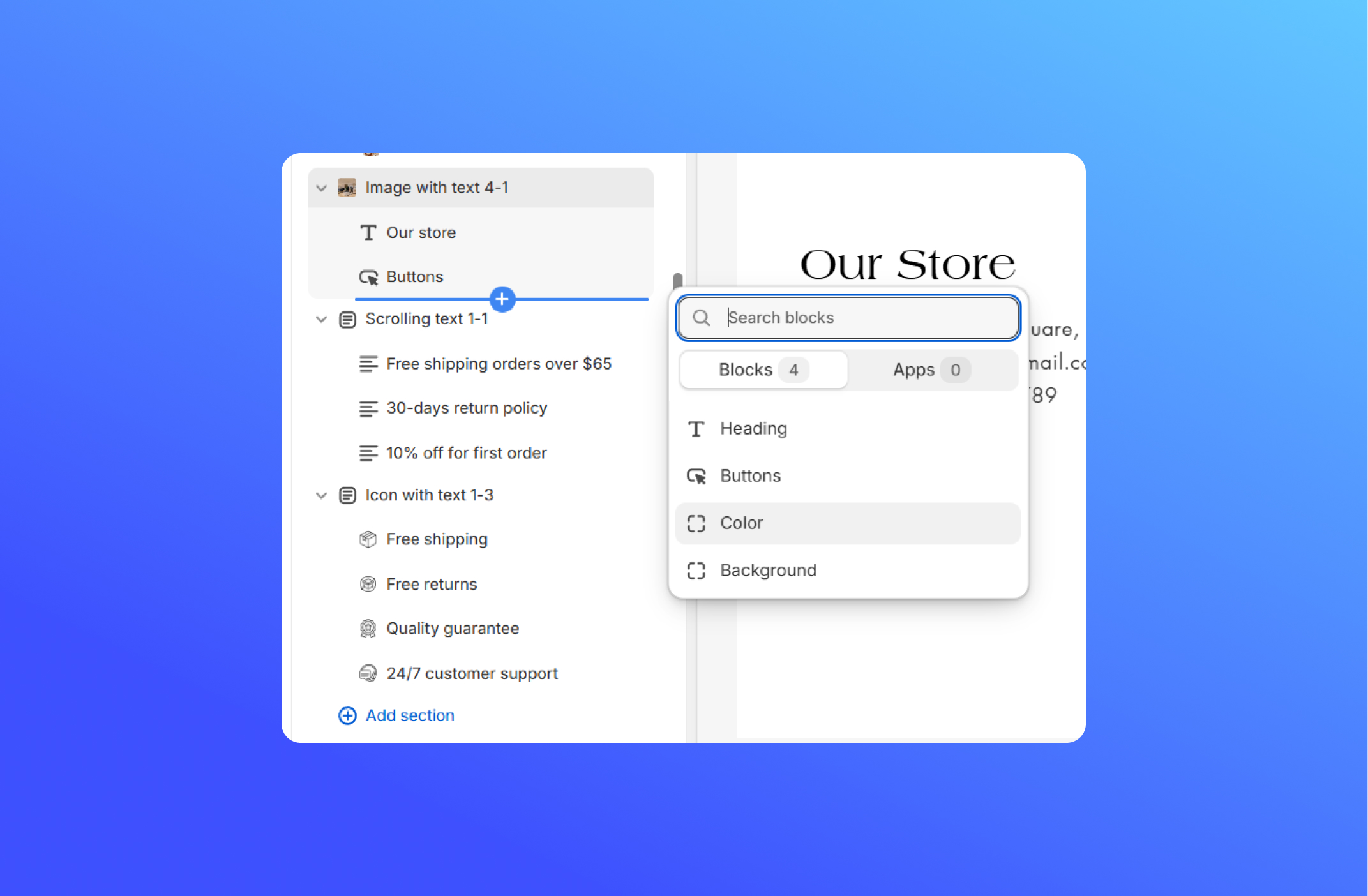
When you use the color block, it only affects the section that contains it, and the color scheme will not work in that section.
If you change the background color in the color block, but the background of the section doesn’t change, it might be because the background block is active. To apply the background color, you need to either hide or delete the background block.
Color Scheme For Smind Section
To understand how to use the color scheme, read this article.
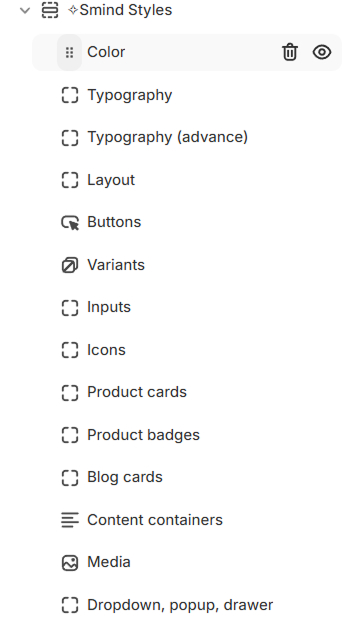
To change the color scheme, click on the Global section > Smind Styles > Color , and then customize the color schemes
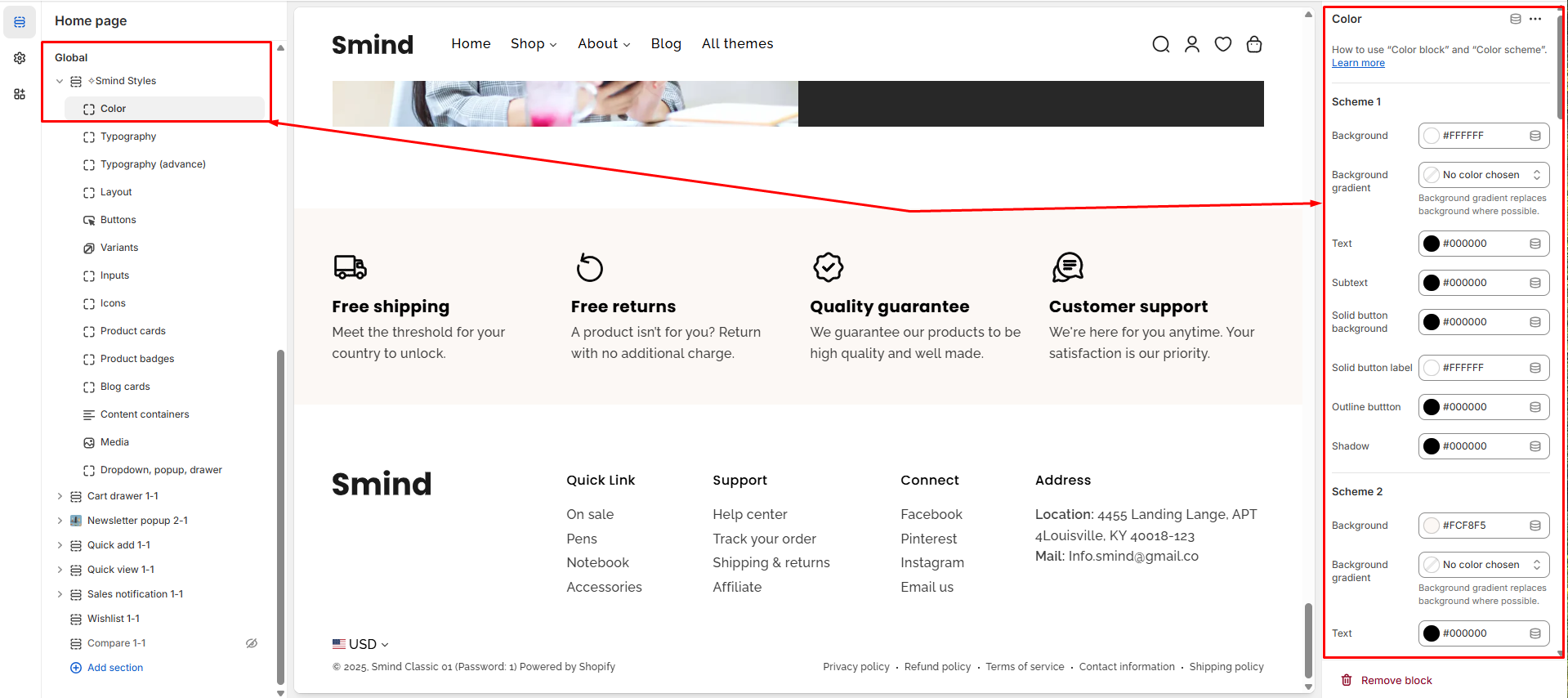
If you change the color scheme, but the color of the section doesn’t change, it might be because the color block is active. To apply the color scheme, you need to either hide or delete the color block.
If you change the color scheme, but the background of the section doesn’t change, it might be because the background block is active. To apply the background color, you need to either hide or delete the background block.
This section is a global style manager where each item here lets you define the look & feel for your store. Here’s what each one controls:
| Control | What It Does |
| Background | The default page-section or block background color. |
| Background gradient | An optional two-tone gradient that replaces the plain Background where supported. |
| Text | The primary text color used for headings |
| Subtext | The secondary text color used for captions and description |
| Solid button background | The fill color for the primary buttons across all blocks. |
| Solid button label | The text color of button label |
| Outline button | The border color for outline style buttons. |
| Shadow | The color of shadow applied to the blocks |
Configure border and shadow colors in sections with two color schemes
For sections with two color schemes, the “Section color scheme” will be applied to both the border and shadow colors of the cards.
For example: