How to setup Icon With Text in Cart Driver
Delivers clear, bite-sized messages with icons to help customers grasp key info at glance.
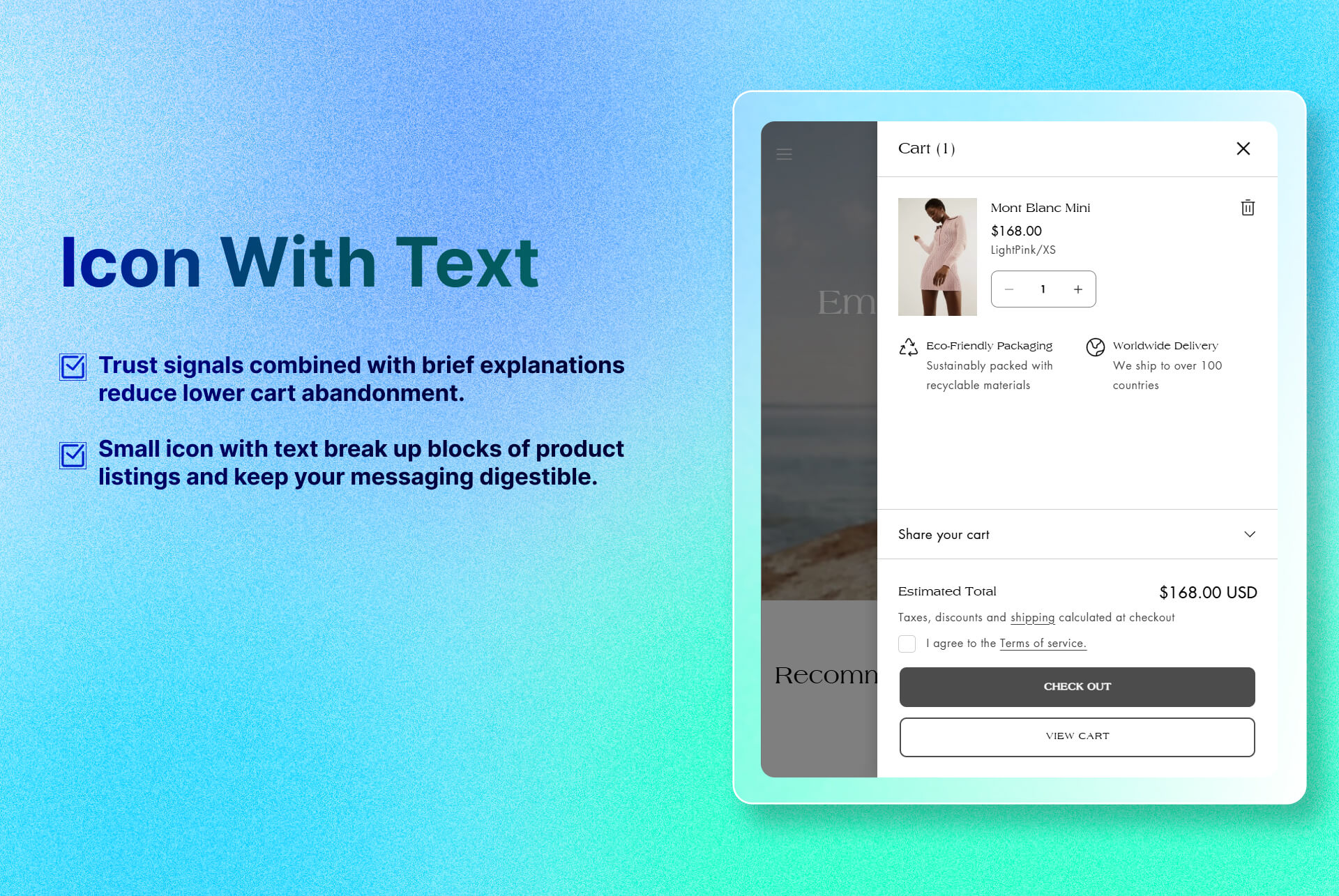
Key Features
- Icon selector: Choose icons from the library or upload your icons to visually represent your message.
- Layout & alignment controls: Place icon left or top of text. Choose alignment position of text within the drawer.
- Rich-text formatting: Add the description for the icon or add links to policies or FAQ.
Benefits
- Builds Confidence: Trust signals combined with brief explanations reduce lower cart abandonment.
- Improves Scannability: Small icon with text break up blocks of product listings and keep your messaging digestible.
How To Use?
- Click Add Block
- Choose Icon With Text
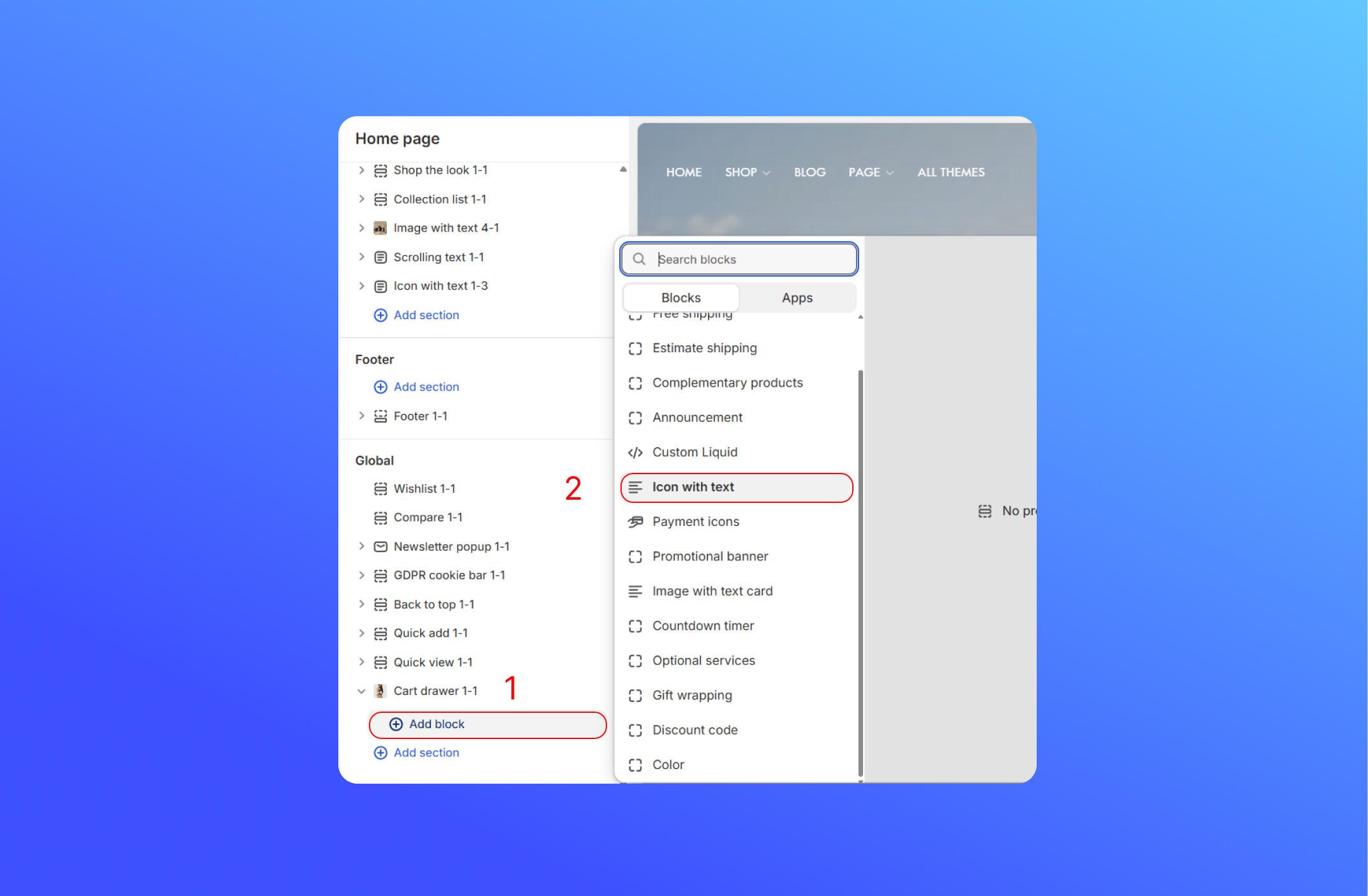
- Customize the Icon with Text block
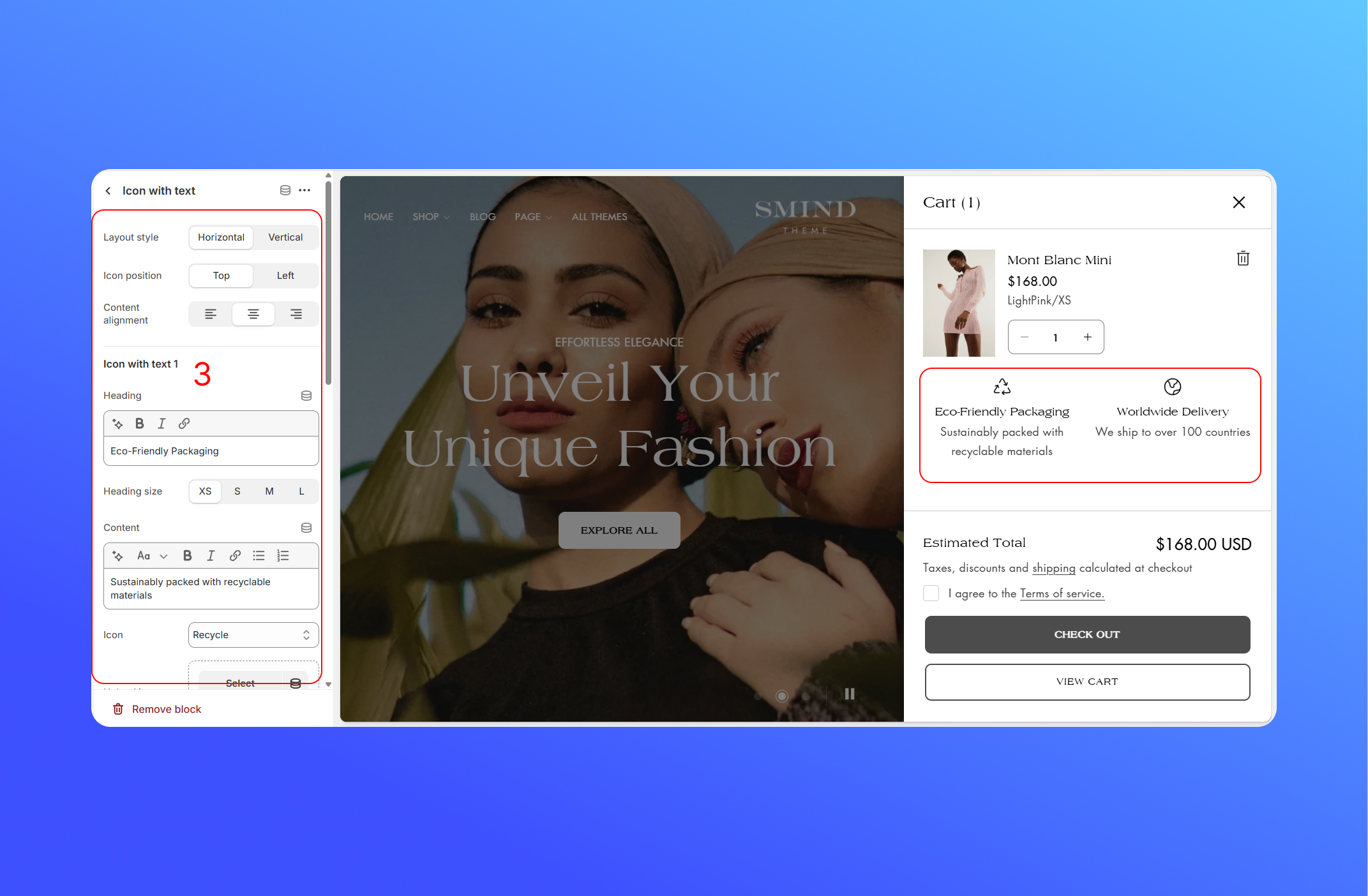
- Layout Style: Change the layout position to horizontal or vertical layout.
- Icon Position: Change the icon position to top or left for the content
- Content Alignment: Controls how the heading and description are justified inside their container.
- Heading: Enter your messages in the headline.
- Heading Size: Pre-set font scales to make your heading larger or smaller.
- Content: The description for the content is under the heading.
- Icon: Pick from your theme icon library.
- Upload Icon: Upload a custom icon.
- Icon Size: Adjust the icon size.
- Icon Background: Choose a background color behind your icon or leave a transparent
Did this answer your question?
If anything is unclear, tell us — we improve docs weekly.