How To Configure Discount Rule And Price Display?
Settings is the central configuration page for your entire B2B setup. Every option here applies globally across modules — Wholesale, Volume Pricing, Customer Management, and Registration. This is where you define the “rules of the game,” especially how the app resolves conflicts when multiple discounts or customer groups apply to the same product.
Set it up via Apps > Smind B2B > Settings
1. Setup Discount behavior
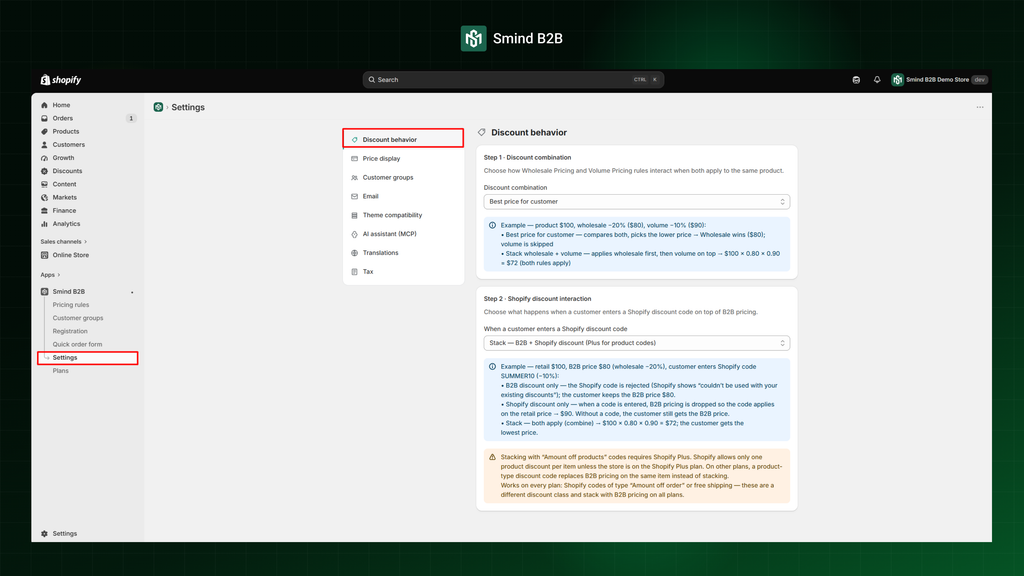
Navigate to Apps > Smind B2B > Settings > Discount behavior
This is the most important section in Settings. It controls how the app calculates the final B2B price when a customer qualifies for more than one discount at the same time. The app uses a 2-step pipeline to resolve conflicts:
1.1. Discount combination Wholesale & Volume
This step decides what happens when a single product has both a winning wholesale rule and a winning volume rule applying at the same time. The output of this step is a single B2B price for that product.
There are 2 options
- Best price for customer (default): The app compares the wholesale price and the volume price, then picks whichever saves the customer more.
Example: Retail $100. Wholesale = 20% off = $80. Volume (at 60 units) = 10% off = $90. The app picks $80 because it is the lower price.
- Stack wholesale + volume: Both discounts apply in sequence — wholesale first, then volume on top.
Example: Retail $100 minus 20% wholesale = $80, then minus 10% volume = $72.
1.2. Shopify discount interaction
Decides what happens when a customer with a B2B price from the previous step also enters a Shopify discount code at checkout. There are 3 options
- B2B discount only (block code): The B2B price overrides the Shopify discount code entirely. The customer pays the B2B price
Example: Retail $100, B2B price $80 (wholesale −20%), customer enters Shopify code SUMMER10 (−10%). The customer keeps the B2B price $80.
- Shopify discounts only(drop B2B): The Shopify discount code overrides the B2B price entirely. The customer pays the Shopify-discounted retail price instead.
Example: Retail $100, B2B price $80 (wholesale −20%), customer enters Shopify code SUMMER10 (−10%). The code applied, so the final price is $90 and the B2B discount is dropped.
When “Shopify discounts win” is active and a customer applies a code that results in a higher price than their B2B price, the app displays a yellow warning banner in both the cart drawer and the cart page. This banner explains the situation and includes a “Remove code” link so the customer can revert to their B2B price.
- Stack — B2B + Shopify discount (Plus for product codes): apply both discount for customer.
Example: Retail $100, B2B price $80 (wholesale −20%), customer enters Shopify code SUMMER10 (−10%). The code applied, so the final price is 100 × 0.80 × 0.90 = $72 – the customer gets the lowest price
Note: Stacking with “Amount off products” codes requires Shopify Plus. Shopify allows only one product discount per item unless the store is on the Shopify Plus plan. On other plans, a product-type discount code replaces B2B pricing on the same item instead of stacking.
Works on every plan: Shopify codes of type “Amount off order” or free shipping — these are a different discount class and stack with B2B pricing on all plans.
2. Setup Price display
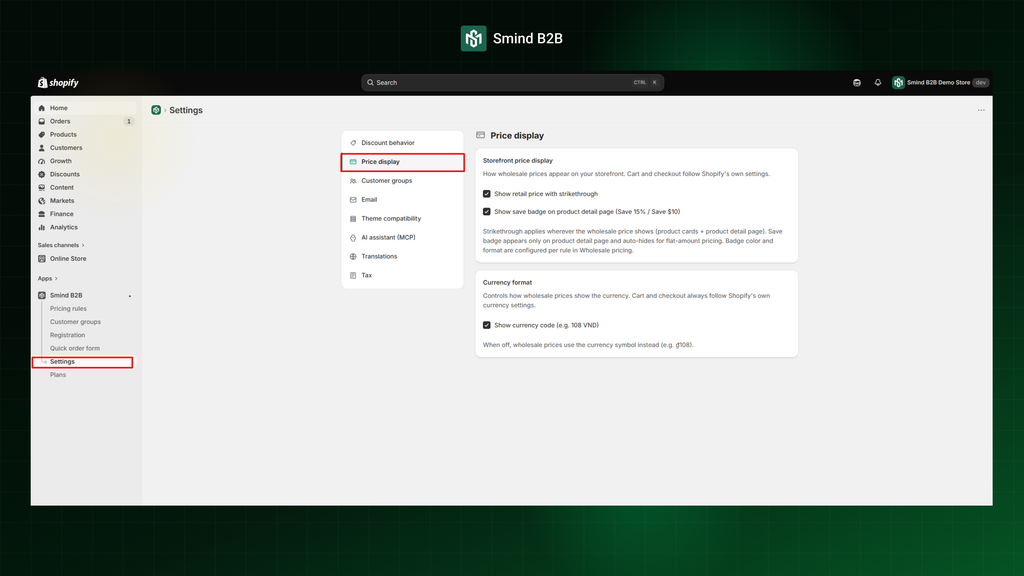
Navigate to Apps > Smind B2B > Settings > Price display
Storefront price display: Controls how discounted prices appear on collection pages, search results, product pages, and homepage grids.
- Show retail price with strikethrough : Displays the original retail price crossed out next to the B2B price.
- Show save badge: Displays a badge (e.g., “Save 15%” or “Save $10”) on the product card.
Strikethrough applies wherever the wholesale price shows on product cards or product detail page. Save badge appears only on product detail page and auto-hides for flat-amount pricing. Badge color and format are configured per rule in Wholesale pricing.
Cart and checkout follow Shopify’s own settings.
Currency format: Controls how wholesale prices show the currency. Cart and checkout always follow Shopify’s own currency settings.
- Show currency code: When on, prices include the ISO code (e.g., “$25.00 USD”). When off, symbol only (e.g., “$25.00”).