How To Display The Volume Pricing Table On The Product Page?
The Volume Table block displays your volume pricing table on product pages. Customers see the quantity thresholds and corresponding discounts
Prerequisite: The app embed must be enabled.
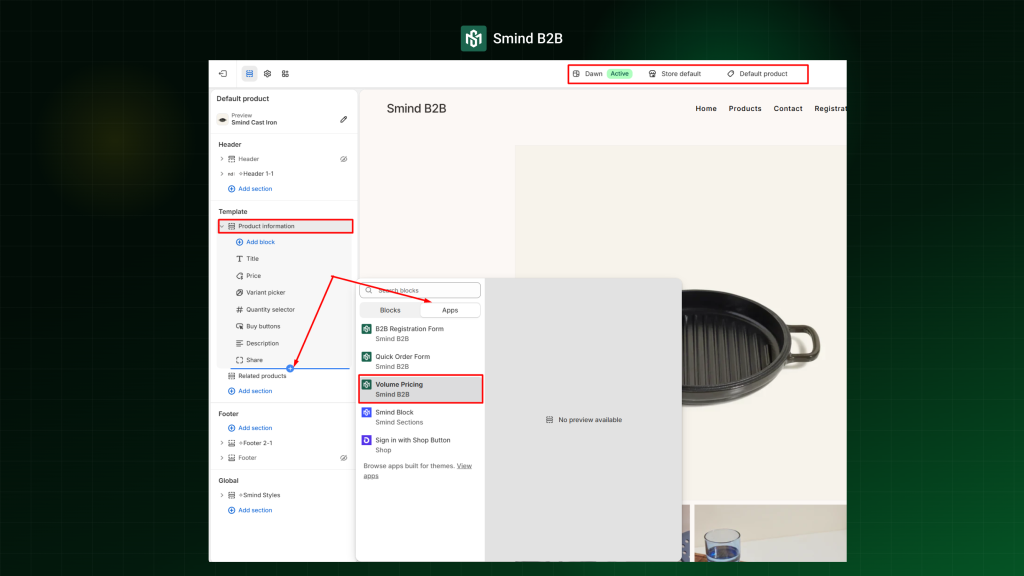
- Navigate to Theme Editor: Go to Online Store > Themes > Edit Theme.
- Select Product Template: On the top-middle bar, choose Products, then select the specific product template you want to edit.
- Locate Product Section: In the left sidebar, select the main product information section (typically named Product information or Product detail).
- Add the App Block: Click Add block, and under the Apps category, select Volume Pricing from Smind B2B.
- Position and Save: Drag and drop the block to your desired position (typically below the price or below the add-to-cart button), then click Save.
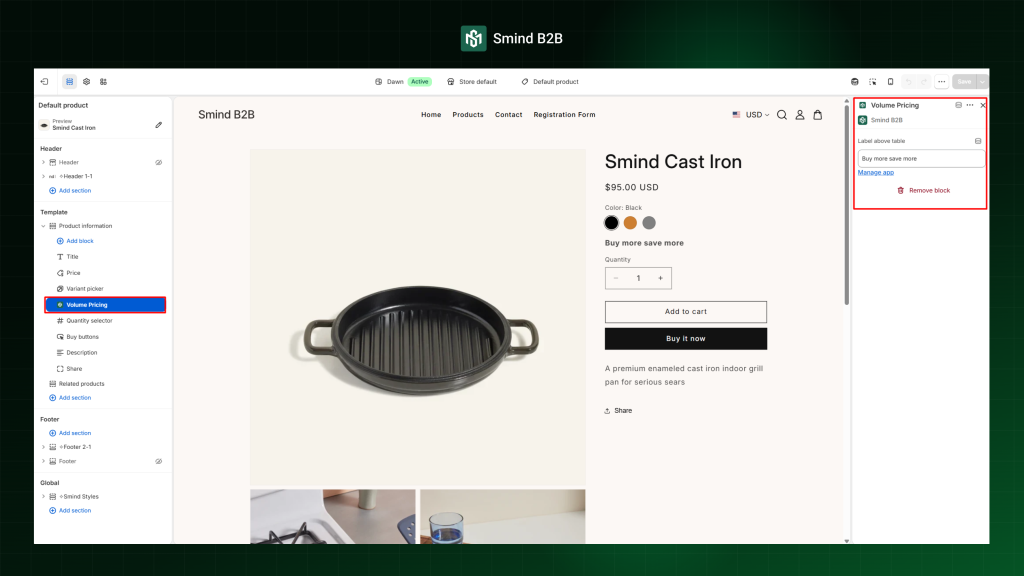
You do not need to configure visibility per product—the block checks for eligibility automatically:
- Shows when the viewed product has at least one active volume rule applying to the current customer.
- Hides when no active volume rules exist for the product, or the customer does not meet eligibility requirements
To change the volume pricing table layout template and custom CSS, navigate to edit the specific volume pricing rule via: Shopify Admin > Apps > Smind B2B > Pricing Rules
To translate: The column headers and tier format strings (“Qty”, “Price”, “Save”, etc.) can be translated for multi-language stores. Configure translations in Apps > Smind B2B > Settings > Translations > Volume pricing.
Did this answer your question?
If anything is unclear, tell us — we improve docs weekly.