How To Configure The Wholesale Pricing?
Setting up wholesale pricing in Smind B2B involves two main steps: creating wholesale pricing rules then assigning them to customer groups. This guide focuses specifically on the first step: creating wholesale pricing rules.
Step 1: Create Wholesale Pricing Rule
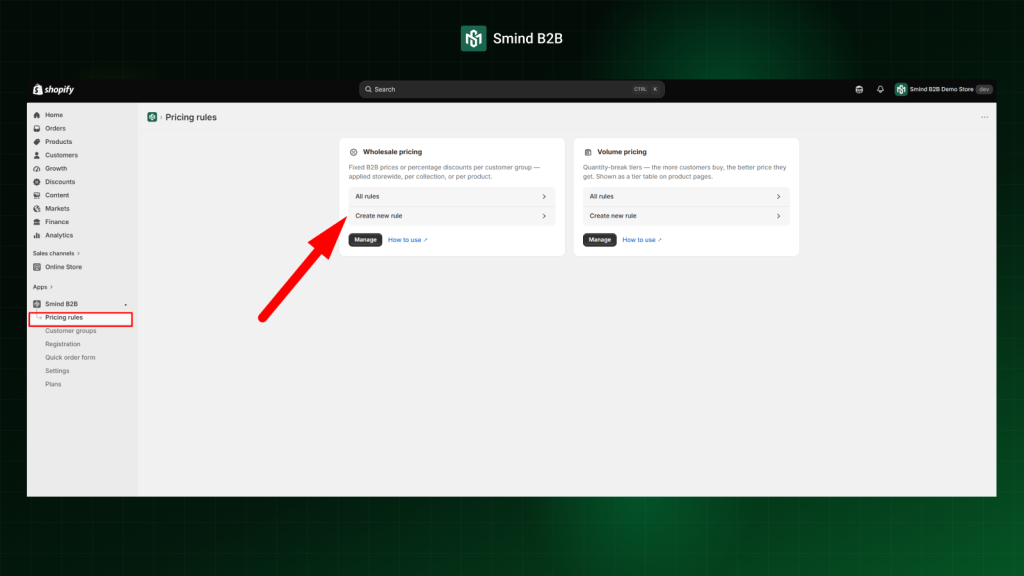
- Go to Shopify Admin > Apps > Smind B2B.
- Click Pricing Rules in the sidebar.
- Under Wholesale Pricing, click Create new rule then follow those steps
Step 2: Configure Wholesale Pricing
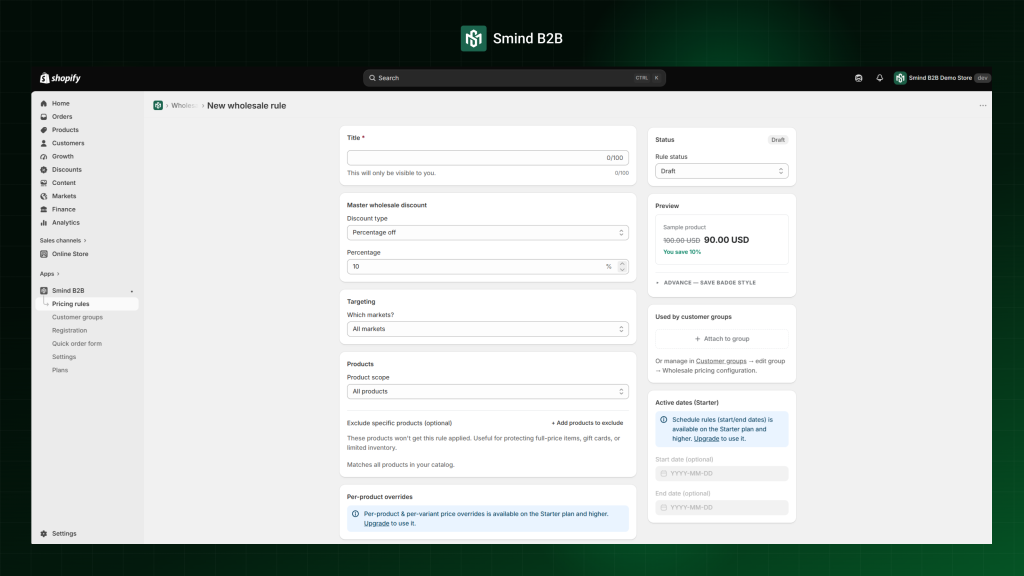
2.1. Title
Enter a title for your reference, such as “B2B Standard 20% Off”. This title is only visible to store administrators and will not be displayed to customers.
2.2. Master wholesale discount
This setting allow you to choose a discount type and enter a value.
| Discount types | What it does | Example |
| Percentage Off (Most Common) | Reduces the retail price by a specified percentage. | 20% off turns a $100 item into $80. |
| Fixed Amount Off | Reduces the retail price by a fixed amount for each unit purchased | $5 off turns a $100 item into $95. |
| Flat price | Replaces the retail price entirely with a fixed price. | Fixed $99 regardless of the original retail price. |
This master discount applies to every product within the rule’s scope unless a per-product override exists (see 2.5)
2.3. Targeting
In “Which Market?”, choose whether this pricing rule applies to All Markets or only Specific Markets.
This setting allows you to limit the discount to selected regions or apply it globally. For this example, we’ll select All Markets, which means the wholesale pricing rule will apply in every market for customers who meet the selected customer group criteria.
2.4. Products
Under Product scope, select the scope that determines which product apply this pricing rule.
- All products: Applies the rule to your entire product catalog.
- Specific products: Applies the rule only to selected products..
- Collections: Applies the rule to all products within one or more collections.
- Product tags: Applies the rule to products that carry specific product tags.
- Vendor: Applies the rule to products from a specific vendor.
This setting determines which products receive the wholesale discount.
For this example, if select All Products, so the discount applies across your entire store catalog. If needed, you can also exclude specific products from the discount. This is useful for protecting full-price items, gift cards, or products with limited inventory. To exclude products:
- Choose Product scope = All Products
- In Exclude specific products (optional), click Add Product to Exclude
- Select the products you want to exclude then click Add to save your selection.
2.5. Per-product overrides
If you need different discount for specific products or variants, you can use Per-product overrides instead of using the Master Discount.
- Scroll to Product overrides then click Add products.
- Select the product then click Add to save your selection
- Enter the custom discount or price for that product.
- Expand the product row to set overrides at the variant level if needed.
Priority: Variant > Product > Master.
The app always determines the final discount using the following priority:
- Variant override (highest priority): a discount set on a specific variant.
- Product override: a discount set on the product (applies to all its variants unless a variant override exists).
- Master discount: the default wholesale discount applied to all other products
2.6. Active date
You can schedule when this wholesale pricing rule becomes active and when it expires by setting the Start Date and End Date.
Leave both fields blank if you want the rule to remain active indefinitely. This feature is useful for running time-limited wholesale promotions or seasonal pricing campaigns.
2.7. Preview
You can also preview how your wholesale discount appears on your storefront. Click ADVANCE – SAVE BADGE STYLE to customize the Save badge displayed next to discounted prices on the product detail page.
- Format: Save X% or Save $X or Save X% ($X)
- Text color: the font color of the badge label.
- Background color: the badge background.
- Transparent background: adjust opacity so the badge blends with your theme.
Save badge appears only on product detail pages. Visibility (show/hide) is controlled globally in Settings → Storefront price display. These fields control style only.
Step 3: Active Rule & Save Rule
- Under Status, change the Rule status dropdown from Draft to Active
- Click the Save button in the top right corner
- You should see a confirmation message “Wholesale rule created”
You have now successfully created a wholesale pricing rule. The next step is to assign the rule to the appropriate customer group(s) so it can be applied to the right customers.