How to setup Complementary Product in Cart Drawer
Automatically suggest one or more complementary products in the cart drawer based on the customer’s current cart contents.
Key Features
- Configurable a recommendation title
- Manually pick the product when this item has no complementary product
Benefits
- Drives upsells and cross-sells at a key purchase moment
- Increases average order value by showcasing relevant items
How To Use?
- Click Add Block
- Choose Complementary Product
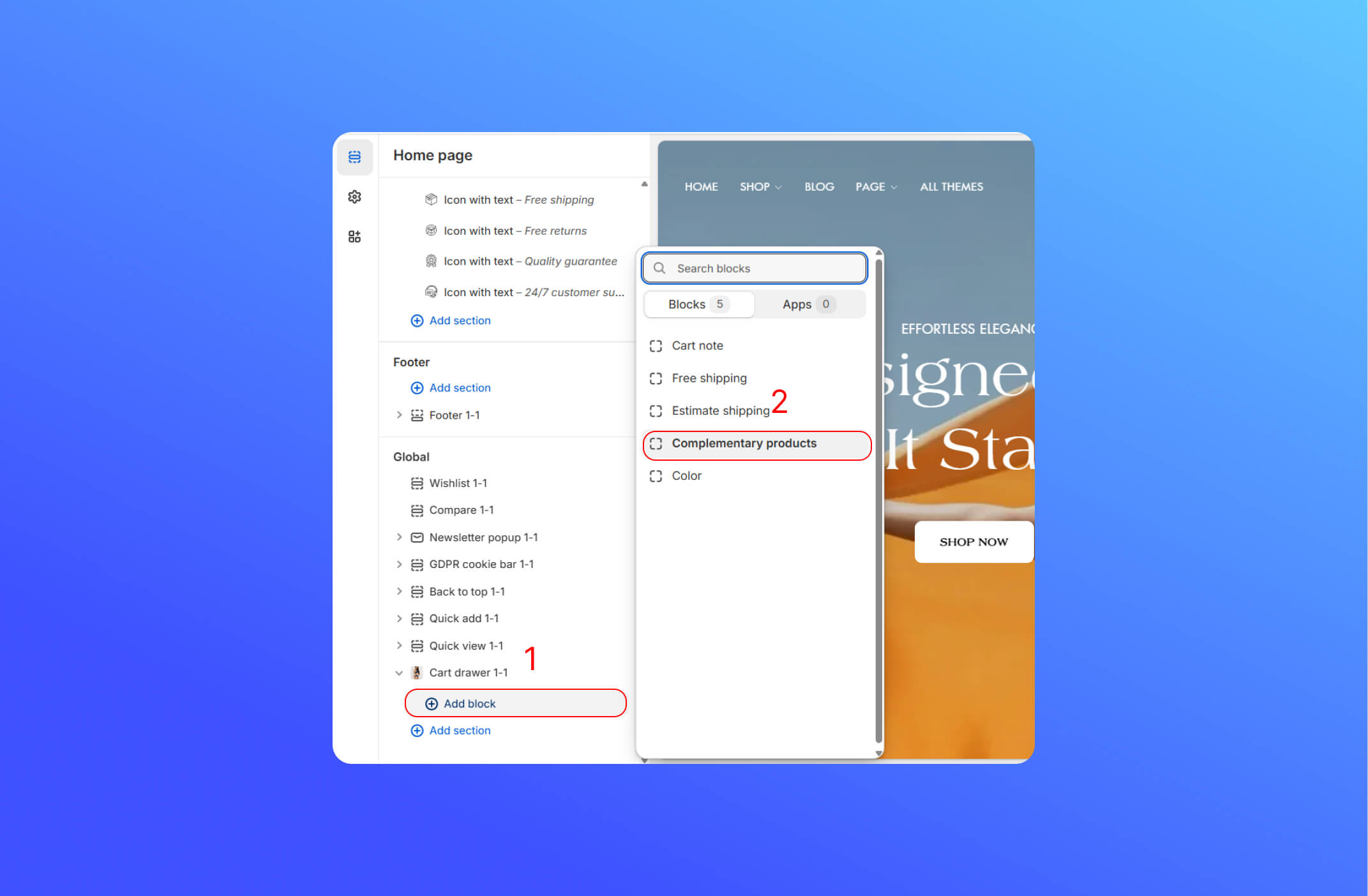
- Customize the Complementary Product
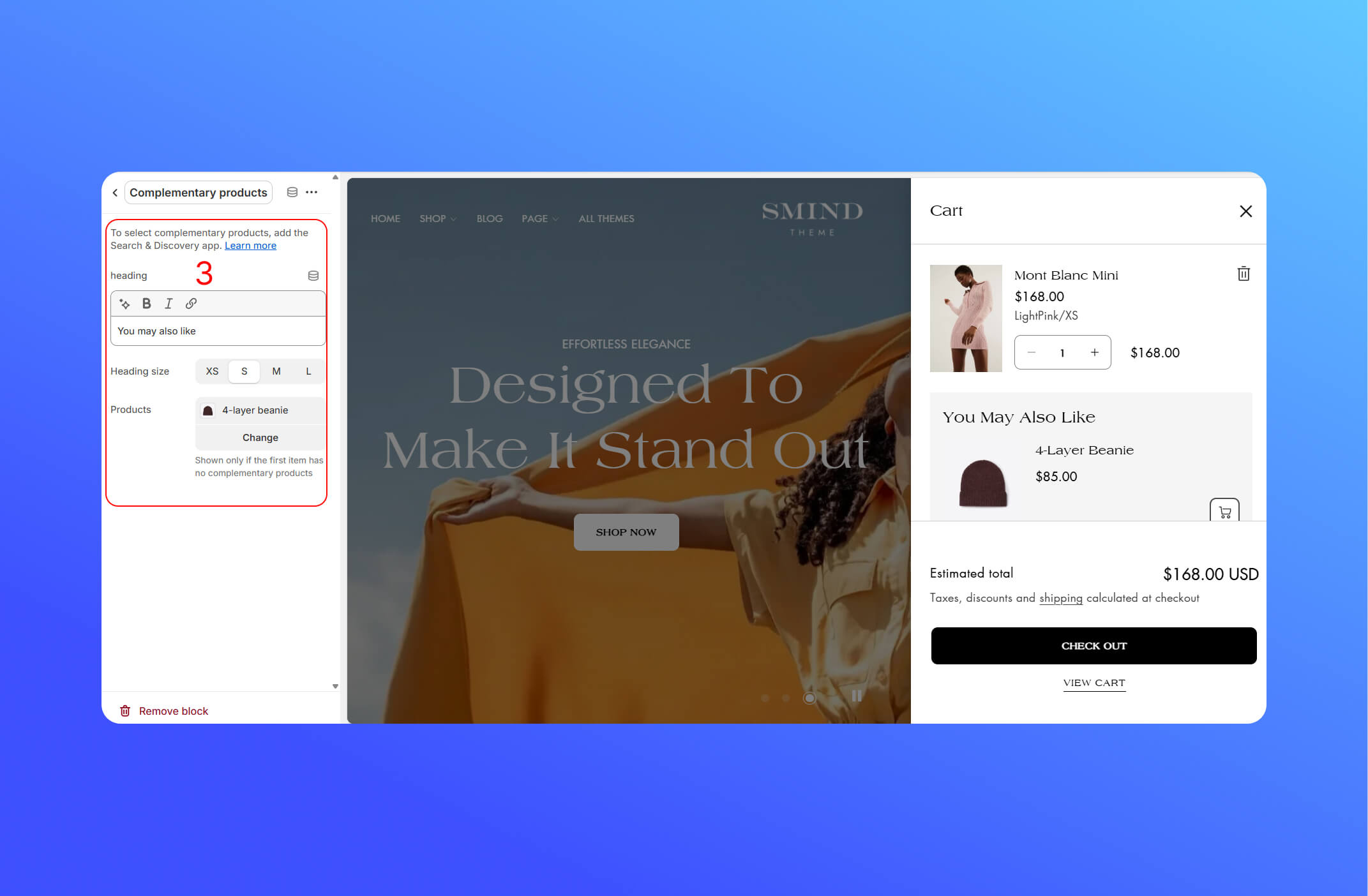
The first thing you have to do is to select complementary products and add it in the Search & Discovery app. Click here to learn more about it
- Heading: The label shown above your recommendations (e.g. “You May Also Like”).
- Heading size: Choose XS, S, M or L to control how big that heading appears.
- Products: Manually pick one or more items to display if there aren’t any automated recommendations configured via the Search & Discovery app.
Did this answer your question?
If anything is unclear, tell us — we improve docs weekly.