How to Setup Image With Text in Cart Drawer
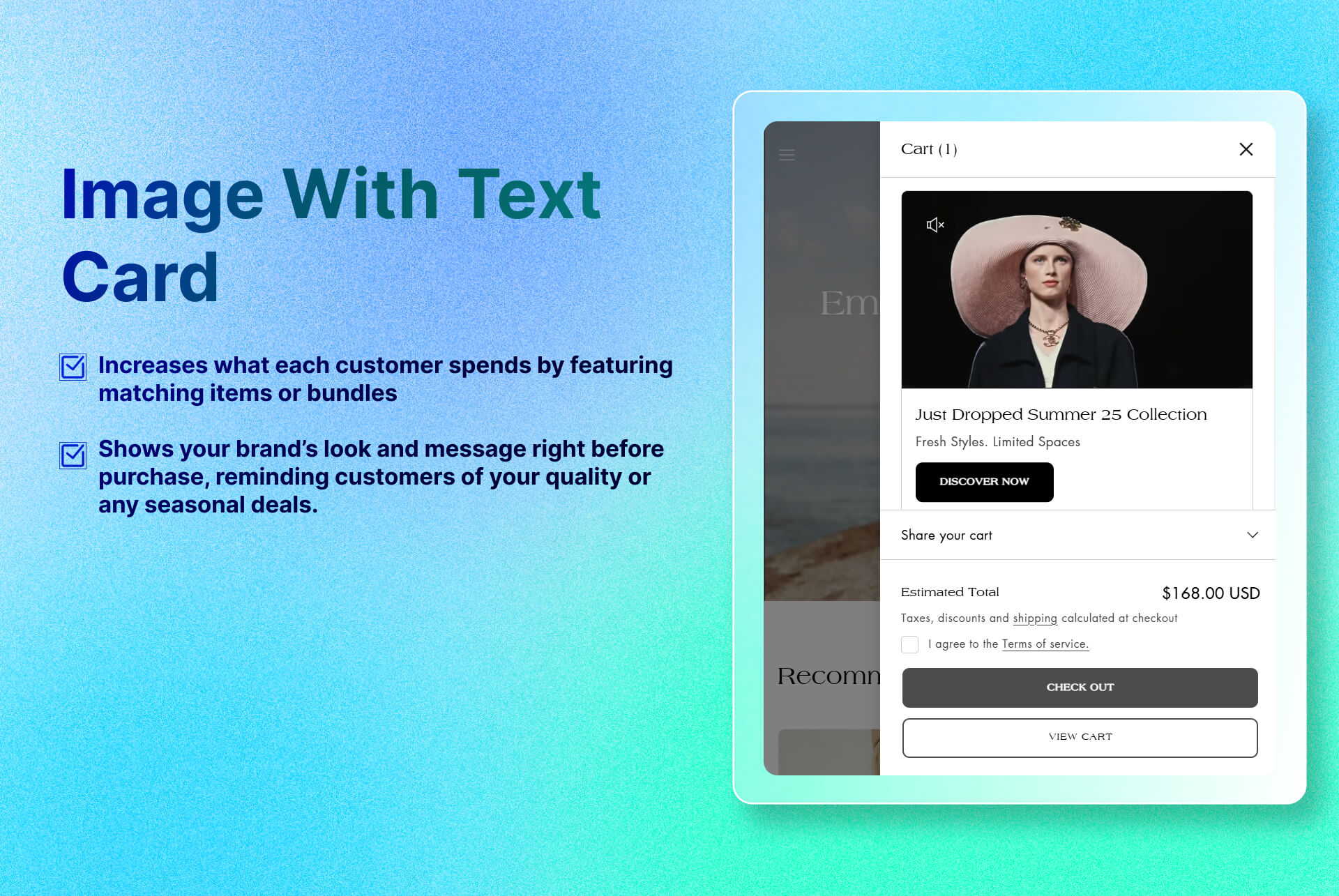
Uses a striking visual to draw attention and encourage customers to explore complementary product, promotion, or branded message without sending the shopper away.
Key Features
- Upload Image or Video: You can add any image or insert Youtube videos to draw the eye—product shot, lifestyle photo, or graphic.
- Call-to-Action Button: Add a button that links directly to a product, collection, or landing page.
- Headline & Description: Allow to add the heading and description for a product or collection.
Benefits
- Visual Upsell: The customer are more likely to click an eye-catching image with the headline more than simple text link.
- Increased AOV: Increases what each customer spends by featuring matching items or bundles
- Seamless Branding: Shows your brand’s look and message right before purchase, reminding customers of your quality or any seasonal deals.
How To Use?
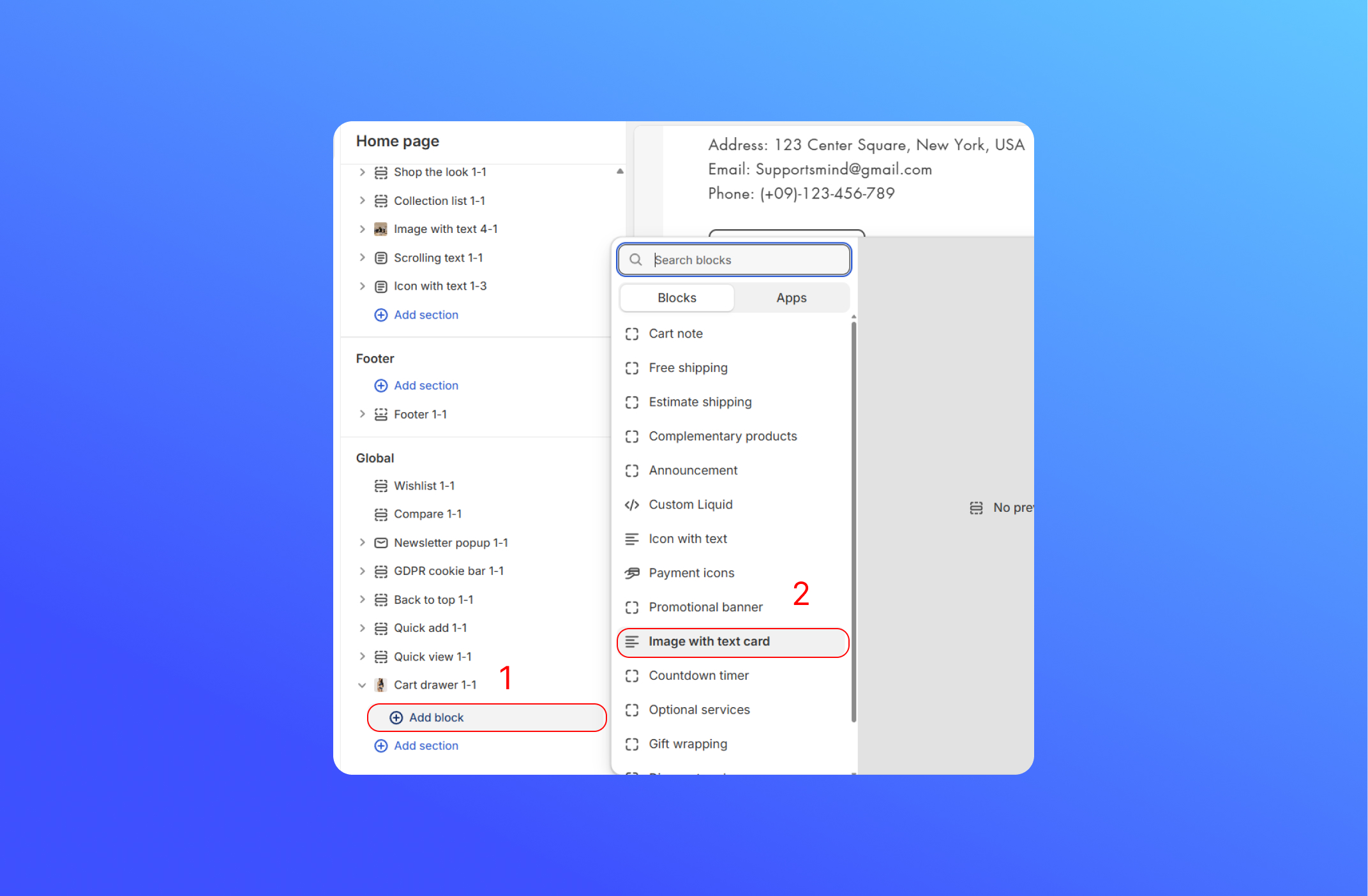
- Click Add Block
- Choose Image with Text Card
- Customize the Image with Text Card block
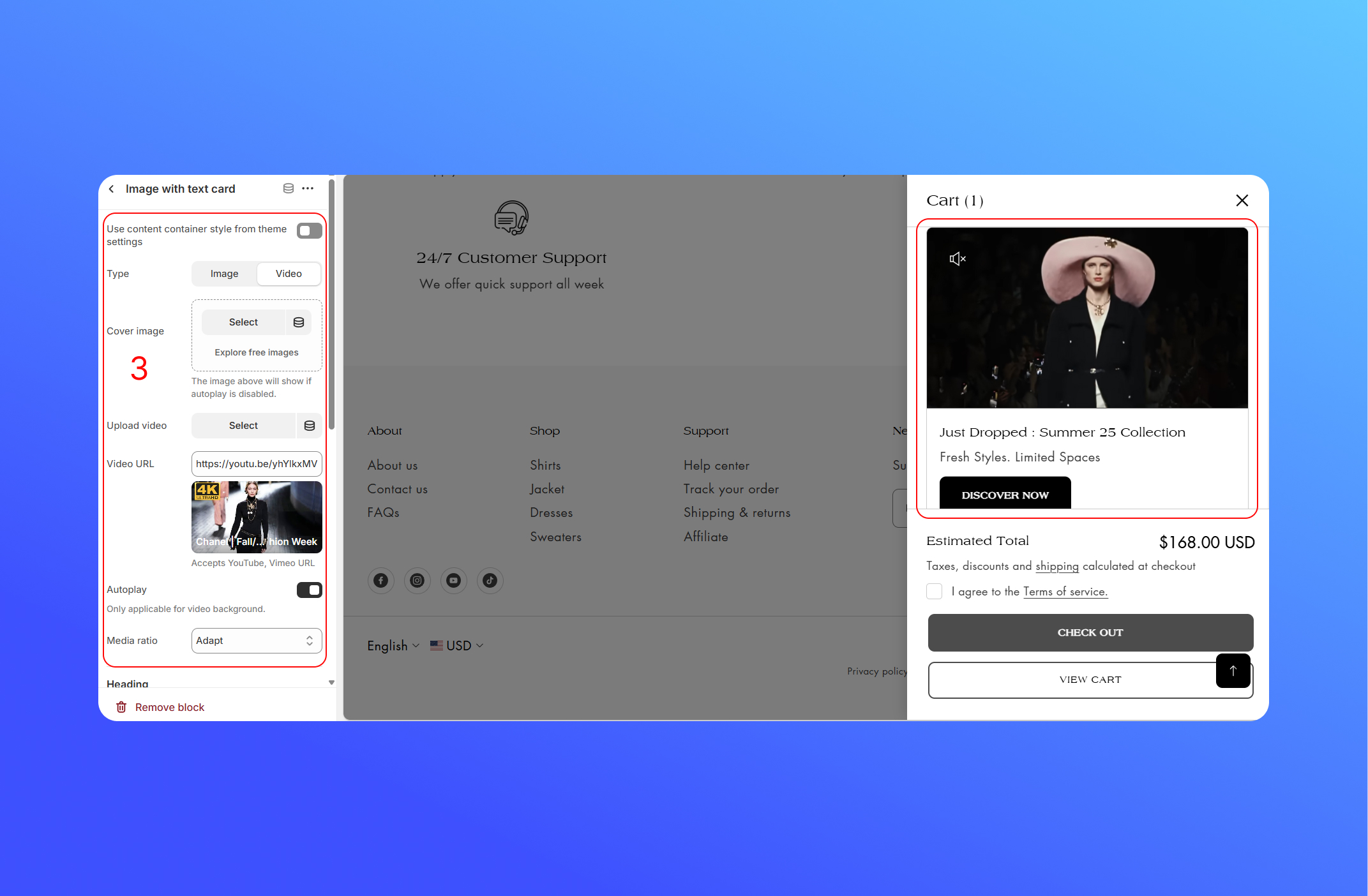
- Use content container style from theme settings: Toggles between your theme’s default content width/padding or the card’s own custom padding.
- Media Type: Pick a static image background or a video background for the card.
- Image & Video Sources: Upload image or videos to the cart drawer
- Heading: Your main title with rich-text formatting.
- Heading size: Choose XS, S, M or L to scale the font.
- Description: A smaller subtitle under your heading.
- Heading alignment: Left-, center- or right-justify your heading & description within the card.
- Button: Insert a button label, button link and button style.
Did this answer your question?
If anything is unclear, tell us — we improve docs weekly.