How to setup Promotional Banner in Cart Drawer
Display a banner to highlight your current deals, discounts or calls-to-action right when customers are reviewing their cart.
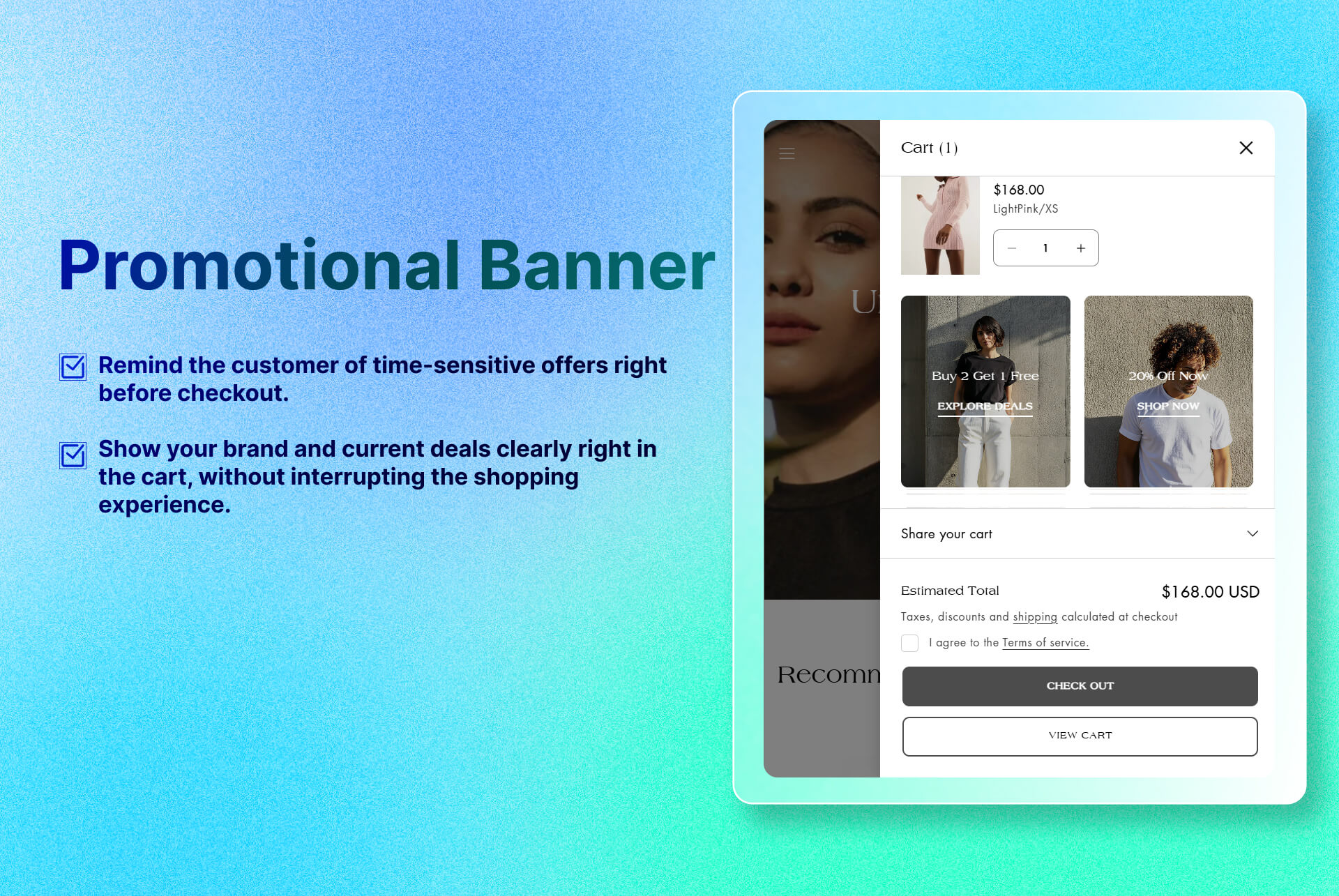
Key Features
- Upload Banner and Heading: allow to upload the image and insert the heading.
- Custom CTA: allow to customize the buttons that hooks to any URL.
- Styling Controls: Background & text colors, font size, padding and alignment to match your brand.
Benefits
- Increase Conversion Rates: Remind the customer of time-sensitive offers right before checkout.
- Reinforce Branding & Campaigns: Show your brand and current deals clearly right in the cart, without interrupting the shopping experience.
How To Use?
- Click Add Block
- Choose Promotional Banner
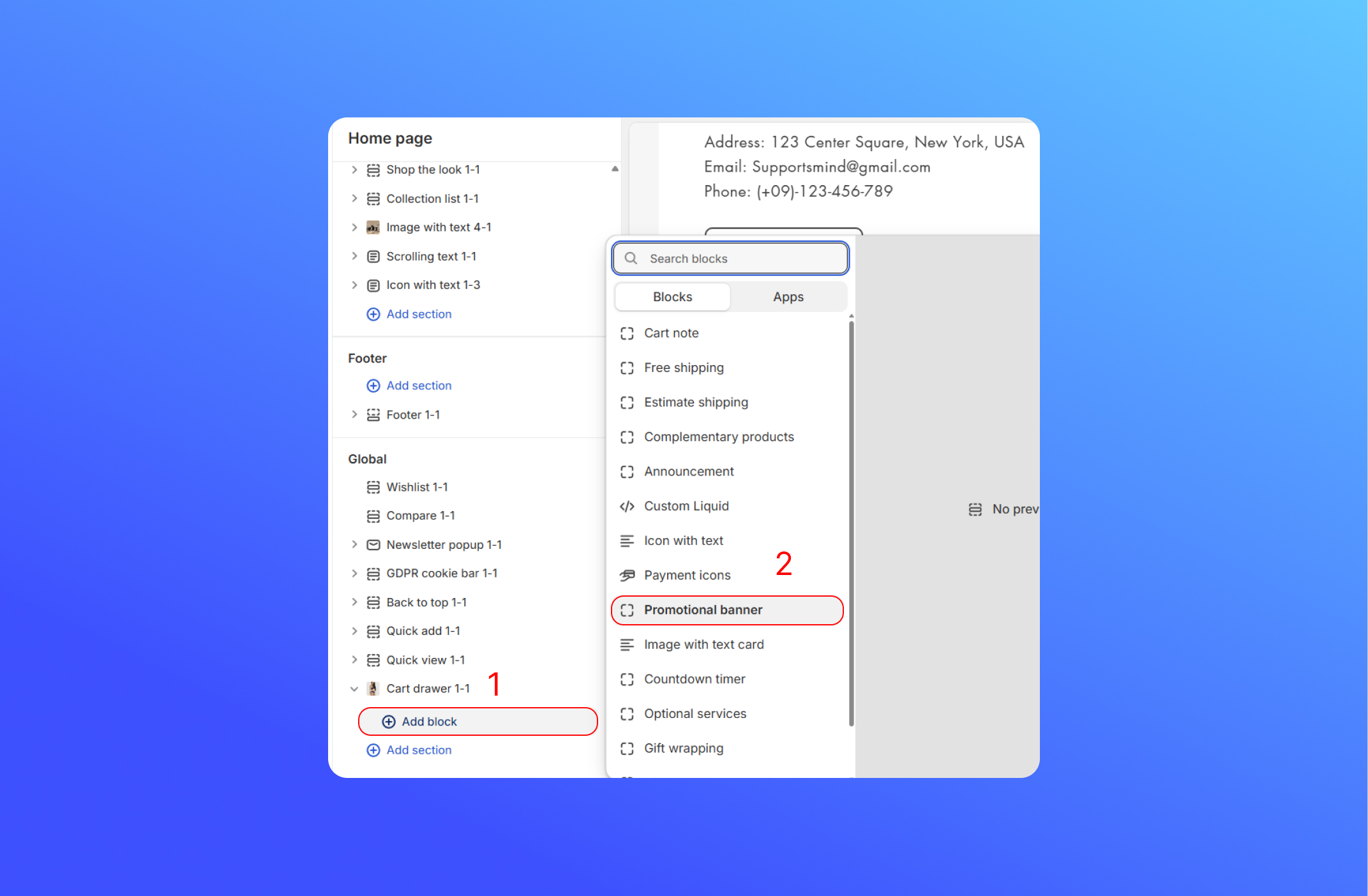
- Customize the Promotional Banner block
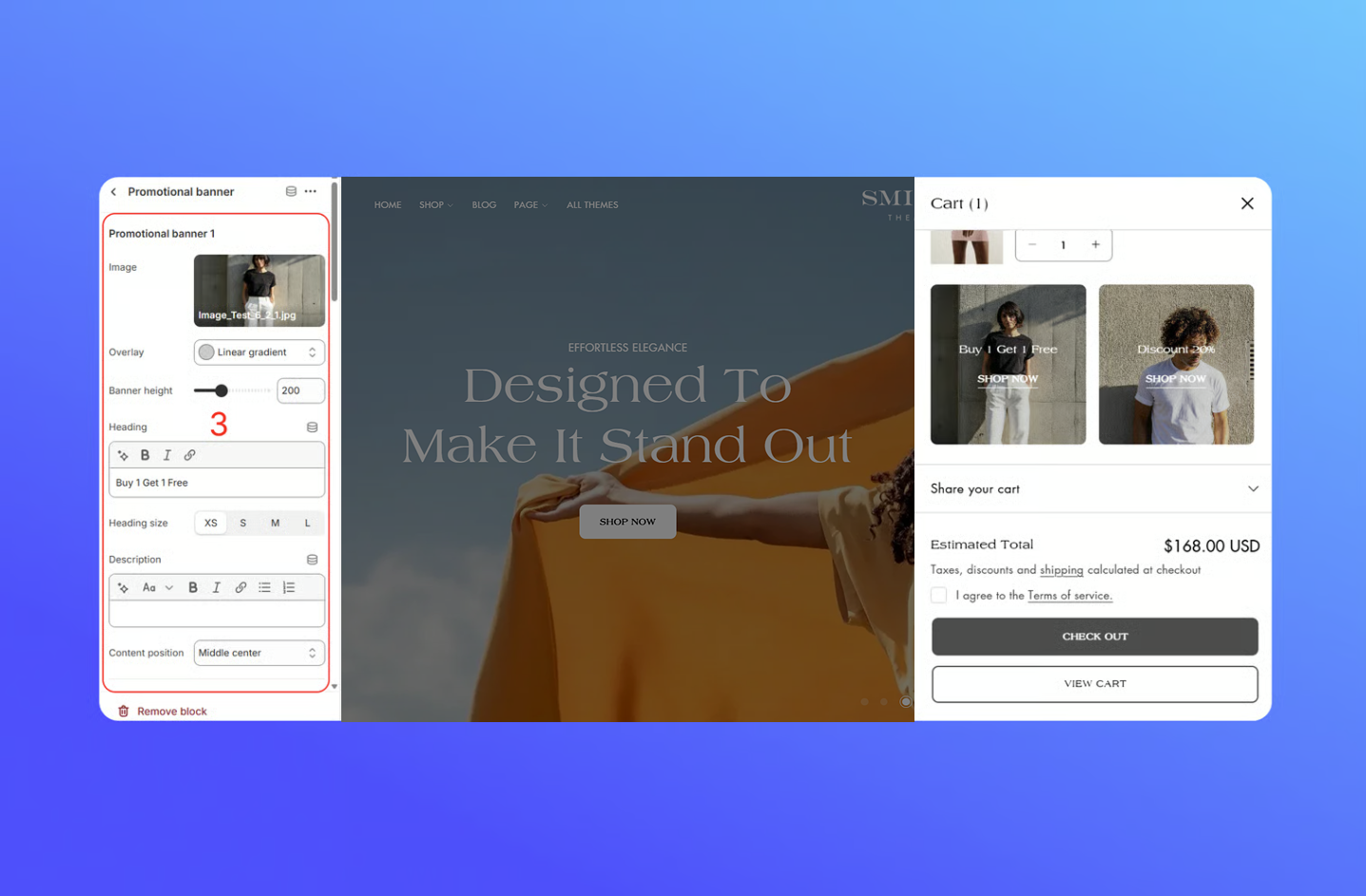
- Image: Upload or select the background image for your banner.
- Overlay: Choose a color or gradient layer on top of your image to improve text contrast.
- Banner Size: Set how tall the banner is on desktop and mobile.
- Heading: Insert your main headline and change the heading size.
- Description: Optional sub-text under the headline.
- Content Position: Choose where your heading/description sit over the image: top-left, middle-center, bottom-right.
- Content Padding: Add whitespace around your text.
- Button: Add a button label, button link and button style.
- Color: Set a color for text, background and button style.
Did this answer your question?
If anything is unclear, tell us — we improve docs weekly.